> ## Documentation Index
> Fetch the complete documentation index at: https://docs.cdp.coinbase.com/llms.txt
> Use this file to discover all available pages before exploring further.
# Sandbox: Deposit Destinations
## Overview
Deposit destinations are addresses where you can receive crypto payments.
In Sandbox, these are **placeholder addresses** for API testing. They are not real blockchain addresses, and the Sandbox does not connect to any blockchain network.
In this guide, **deposit destination** and **deposit address** are used interchangeably. The API refers to the full resource as a "deposit destination," while the Portal UI uses "deposit address" to refer to the same concept.
Deposit addresses are placeholders for testing only. Do **not** send real funds to Sandbox addresses as they don't exist on any blockchain and your funds will be lost.
## Prerequisites
The following instructions use `cdpcurl` and a Sandbox API key. Install [cdpcurl](https://github.com/coinbase/cdpcurl#homebrew) to begin.
## Programmatically
### 1. Create a deposit destination
Create a [deposit destination](/api-reference/v2/rest-api/deposit-destinations/create-deposit-destination):
```bash theme={null}
cdpcurl -k $CDP_API_KEY \
-X POST \
-d '{
"accountId": "YOUR_ACCOUNT_ID",
"network": "base",
"asset": "usdc"
}' \
'https://sandbox.cdp.coinbase.com/platform/v2/deposit-destinations'
```
```json theme={null}
{
"depositDestinationId": "dd_abc123...",
"address": "0x742d35Cc6634C0532925a3b844Bc454e4438f44e",
"network": "base",
"asset": "usdc",
"accountId": "account_db458f63-418a-4a91-a045-fab93ac35c3f",
}
```
### 2. List your deposit destinations
See all deposit destinations for an account:
```bash theme={null}
cdpcurl -k $CDP_API_KEY \
'https://sandbox.cdp.coinbase.com/platform/v2/deposit-destinations?accountId=YOUR_ACCOUNT_ID'
```
```json theme={null}
{
"depositDestinations": [
{
"depositDestinationId": "dd_abc123...",
"address": "0x742d35Cc6634C0532925a3b844Bc454e4438f44e",
"network": "base",
"asset": "usdc",
"accountId": "account_db458f63-418a-4a91-a045-fab93ac35c3f",
}
]
}
```
### 3. Simulate a deposit
Simulate an incoming deposit to test webhook integration and balance updates.
The following example simulates an external sender depositing funds to a created deposit destination:
```bash theme={null}
cdpcurl -k $CDP_API_KEY \
-X POST \
-d '{
"deposit_address": "",
"amount": "100.00",
"asset_symbol": "usdc",
"network": "base"
}' \
'https://sandbox.cdp.coinbase.com/fake/deposit/crypto'
```
The `asset_symbol` and `network` should match the configuration of that deposit destination.
```json theme={null}
{
"transfer_id": "transfer_b340437d-4705-446f-8852-2345c83ace60",
"created_at": "2026-02-24T03:12:10.077Z"
}
```
**What happens when you simulate a deposit:**
1. **Webhook events fire:**
* `payment.transfer.processing`
* `payment.transfer.completed`
2. **Transfer records are created:**
* Appear in the [List Transfers](/api-reference/v2/rest-api/transfers/list-transfers) API
3. **Balance is credited:**
* The account balance updates immediately
Use simulated deposits to test webhook integration, reconciliation flows via the Transfers API, or balance updates.
## Using Portal UI
You can create deposit destinations and simulate deposits through the Portal UI.
### 1. Create a deposit address
Go to the [Accounts page](https://portal.cdp.coinbase.com/v2/sandbox) in the CDP Portal Sandbox
Click on the account row you want to manage to open the Account details page
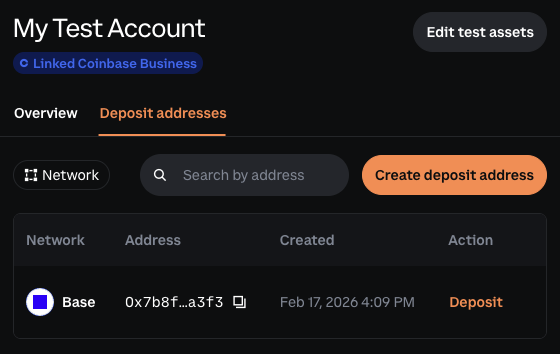
Select the **Deposit addresses** tab. Your existing deposit addresses are listed here.
Click the **Create deposit address** button in the upper-right corner
Select the account and network for your deposit address
Click **Create address**. On success, you'll see a message: "Deposit address created"
 ### 2. Simulate a deposit
Simulate incoming deposits to test your webhook integration and balance updates. This simulates an external sender depositing funds **to your deposit address**, which then automatically credits your account balance.
From your account details page, go to the **Deposit addresses** tab where your addresses are listed
Click **Deposit** under the Action column for the deposit address you want to test
Enter the amount you want to deposit to the deposit address
### 2. Simulate a deposit
Simulate incoming deposits to test your webhook integration and balance updates. This simulates an external sender depositing funds **to your deposit address**, which then automatically credits your account balance.
From your account details page, go to the **Deposit addresses** tab where your addresses are listed
Click **Deposit** under the Action column for the deposit address you want to test
Enter the amount you want to deposit to the deposit address
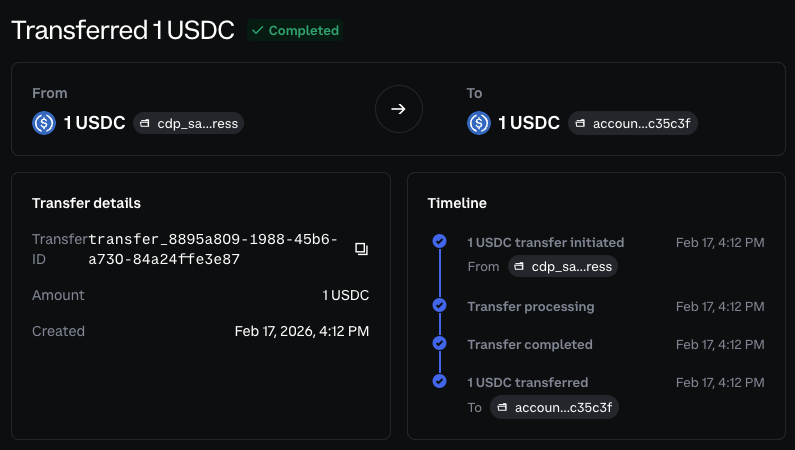
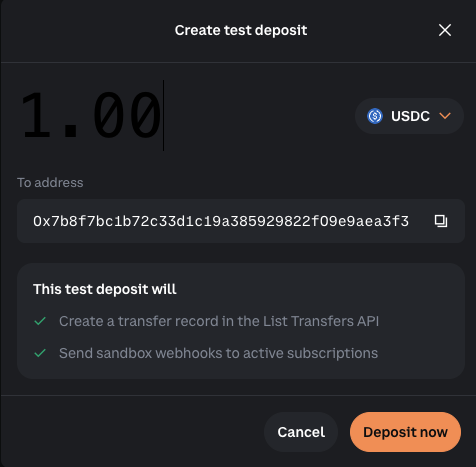 Click **Deposit now** to simulate the deposit. On success, a modal will appear with your transfer details.
 **What happens when you simulate a deposit:**
1. **Webhook events fire:**
* `payment.transfer.processing`
* `payment.transfer.completed`
2. **Transfer records are created:**
* Appear in the [List Transfers](/api-reference/v2/rest-api/transfers/list-transfers) API
3. **Balance is credited:**
* The account balance updates immediately
Use simulated deposits to test webhook integration, reconciliation flows via the Transfers API, or balance updates.
## What to read next
API reference for creating deposit destinations
API reference for listing deposit destinations
**What happens when you simulate a deposit:**
1. **Webhook events fire:**
* `payment.transfer.processing`
* `payment.transfer.completed`
2. **Transfer records are created:**
* Appear in the [List Transfers](/api-reference/v2/rest-api/transfers/list-transfers) API
3. **Balance is credited:**
* The account balance updates immediately
Use simulated deposits to test webhook integration, reconciliation flows via the Transfers API, or balance updates.
## What to read next
API reference for creating deposit destinations
API reference for listing deposit destinations