> ## Documentation Index
> Fetch the complete documentation index at: https://docs.cdp.coinbase.com/llms.txt
> Use this file to discover all available pages before exploring further.
# Headless Onramp
> Build a native onramp experience with Apple Pay or Google Pay where users never leave your app.
You can get started testing the Headless Onramp API using [sandbox mode](#testing). When you're ready to go live, [apply for access](https://support.cdp.coinbase.com/onramp-onboarding) — you get production access immediately after your app is approved. This is the recommended path for Apple Pay and debit card onramp flows.
The [v2 Onramp Order API](/api-reference/v2/rest-api/onramp/create-an-onramp-order) enables you to build a native
feeling onramp experience with Apple Pay or Google Pay where the user never leaves your app. **It's the fastest onramp experience
available anywhere.** Integrating takes only three steps:
## Integration steps
Call the [Create Onramp Order API](/api-reference/v2/rest-api/onramp/create-an-onramp-order) to get a quote and a
payment link. You can fetch the list of available currencies from the [Buy Options API](/api-reference/rest-api/onramp-offramp/get-buy-options).
Render the Apple Pay or Google Pay button via the [payment link URL](/api-reference/v2/rest-api/onramp/create-an-onramp-order#response-payment-link-url)
in a webview or iframe in your app.
Subscribe to [post message events](#post-message-events) from the webview/iframe to listen for success/error messages. Use
these events to notify the user when their transaction succeeds, or what type of error they encountered and how they
might fix it.
## Requirements
### User verification
In order to provide an API driven native onramp experience, we rely on you, the app developer, to collect and verify the user's email address and phone number in your request to the [Create Onramp Order API](/api-reference/v2/rest-api/onramp/create-an-onramp-order). You must verify the user's ownership of the email address and phone number, this can be done by sending an OTP using a vendor like Twilio or AWS SES.
Additionally, the phone number must be re-verified at least every 60 days.
### US only
The Headless Onramp API is currently available for US users with valid US phone numbers. The phone
number must be a real cell phone number, not a VoIP phone number.
### Supported platforms
The onramp payment link can be rendered in:
* **iOS apps**: Via a webview in an iOS app (Apple Pay)
* **Android apps**: Via a WebView in an Android app (Google Pay — see [Android app requirements](#android-app-requirements) below)
* **Web apps**: Via iframe on your website (Apple Pay — requires additional setup, see [Web app requirements](#web-app-requirements) below)
### User gesture required
Both [Apple Pay](https://developer.apple.com/documentation/applepayontheweb/creating-an-apple-pay-session) and [Google Pay](https://developers.google.com/pay/api/web/guides/tutorial) require that a payment session be created by a user gesture. This means that the user has to physically press the pay button we
render within the webview/iframe. It cannot be programmatically triggered.
### Legal agreements
Your users must accept Coinbase's [Guest Checkout Terms of Service](https://www.coinbase.com/legal/guest-checkout/us),
[User Agreement](https://www.coinbase.com/legal/user_agreement) and [Privacy Policy](https://www.coinbase.com/legal/privacy)
prior to using Coinbase Onramp. It is your responsibility to clearly inform users that by proceeding with this payment
they are agreeing to these policies.
### Android App Requirements
To use Google Pay with the Headless Onramp in your Android app, you must:
1. **Get approved for Google Pay** — Your app must be approved by Google before Google Pay will work in production. Follow the [Google Pay publish your integration guide](https://developers.google.com/pay/api/android/guides/test-and-deploy/publish-your-integration) to create a business profile, accept the Terms of Service, and submit your app for approval.
When registering your app in the Google Pay & Wallet Console, select **gateway** as the integration type. After you submit your initial application to go live, you'll need an evidence of partnership document to share with Google Pay representatives. Reach out to your account manager, or reach out to [support](https://support.cdp.coinbase.com/) to request this information.
2. **Configure your Android WebView for Google Pay** — The Payment Request API must be enabled in your WebView to launch the Google Pay payment sheet. Follow Google's official [Using Android WebView](https://developers.google.com/pay/api/android/guides/recipes/using-android-webview) guide to add the required dependencies, intent filters, and WebView settings.
3. **Call the Create Onramp Order API** — Once your app is approved and the WebView is configured, call the [Create Onramp Order API](/api-reference/v2/rest-api/onramp/create-an-onramp-order) to get a payment link, load it in your configured WebView, and listen for [post message events](#post-message-events) to track payment status.
Your app **must** be approved by Google before Google Pay will work in production. In test environments, you can use the Google Pay test suite without approval.
### Web App Requirements
**Interested in integrating Apple Pay for your web app?** Web app integrations require additional setup steps.
[Contact our team](https://cal.com/mark-anstead-ctr-tsndaz/onramp-discussion) to get started.
Rendering the Apple Pay Onramp payment link on your web app in an iframe requires some additional security measures to
ensure the safety of your users.
* Your web app's domain must be registered on the domain allow list in CDP portal
* You must pass the domain name to the [create onramp order API](/api-reference/v2/rest-api/onramp/create-an-onramp-order#body-domain) when creating a payment link
* You must verify the ownership of your domain by hosting a domain verification file (provided by us)
* Your domain must not be registered with any other Apple Merchant ID in the Apple Developer Portal
* You must include the `sandbox="allow-scripts allow-same-origin"` and `referrerpolicy="no-referrer"` attributes on your iframe
To get started with your web app integration, [schedule a call with our team](https://cal.com/mark-anstead-ctr-tsndaz/onramp-discussion) who will walk you through the process of verifying your domain.
You will also need to consider the different levels of Apple Pay support provided by various browsers. Safari offers native Apple Pay support, but other browsers offer a QR code experience where the user can scan the code and complete payment on their phone.
## Post message events
Payment links returned by the Create Order API are designed to be loaded within a webview so that your app can subscribe
to [post message](https://developer.mozilla.org/en-US/docs/Web/API/Window/postMessage) events emitted by our web component.
Events contain an error code and an error message. The message will be localized for the user so it can be displayed
directly in your app UI. See the documentation of your webview library for details on how to consume post message events.
**Android apps** must inject a JavaScript interface that exposes a `postMessage` function on `window.androidWebView`. This bridges post message events from the webview into your native Android code:
```javascript theme={null}
window.androidWebView.postMessage()
```
Register this interface on your `WebView` before loading the payment link so that all events are forwarded to your app.
```javascript Post message event structure theme={null}
{
eventName: "",
data: {
errorCode: "",
errorMessage: "",
}
```
### Events names
The following events are published by the payment link for both Apple Pay and Google Pay.
Emitted when Javascript is initialized and we have started fetching data required to render.
Emitted when the pay button is successfully rendered and ready for user interaction.
Emitted when an error occurred attempting to initialize the pay button. See the error message for more details. Some possible error codes are listed below.
| Error Code | Description |
| ------------------------------------------- | -------------------------------------------------------------------------------------------------------------------------------------------------------------------------------------------------------------- |
| `ERROR_CODE_INIT` | The payment link is no longer valid, call the Create Onramp Order endpoint to create a new one. |
| `ERROR_CODE_GUEST_APPLE_PAY_NOT_SUPPORTED` | The user’s browser or device does not support Apple Pay. This error can be safely ignored on web apps as the browser will fall back to rendering an Apple Pay QR code. |
| `ERROR_CODE_GUEST_APPLE_PAY_NOT_SETUP` | The user has not set up Apple Pay on their device. Prompt the user to setup Apple Pay then try again. |
| `ERROR_CODE_GUEST_GOOGLE_PAY_NOT_SUPPORTED` | The user's device does not support Google Pay. This can occur if the device does not meet Google's [minimum requirements](https://developers.google.com/pay/api/android/guides/recipes/using-android-webview). |
| `ERROR_CODE_NETWORK_NOT_TRADEABLE` | Network selected is unavailable in the region. |
| `ASSET_NOT_TRADABLE` | The asset selected is not tradable in the region. |
| `ERROR_CODE_INTERNAL` | An internal error has occurred in the service. The team will be notified to investigate. Please retry your request. |
| `ERROR_CODE_INVALID_REQUEST` | The request to create the payment link was invalid. Check the parameters passed to the Create Onramp Order API and try again. |
Emitted after the user presses the pay button if the transaction was successfully started.
Emitted after the user presses the pay button if the transaction could not be started. See the error message for more details regarding the payment failure reasons. Some possible error codes are listed below.
| Error Code | Description |
| -------------------------------------------- | ----------------------------------------------------------------------------------------------------------------------------------------------------------------------------------------------------------------------------------------- |
| `ERROR_CODE_GUEST_CARD_SOFT_DECLINED` | The user was declined by the bank. Please contact your bank or try again with a different debit card.
Users attempting to use Apple Cash will also get this error, but we cannot distinguish it from other bank decline cases. |
| `ERROR_CODE_GUEST_INVALID_CARD` | Invalid card or billing address. |
| `ERROR_CODE_GUEST_CARD_INSUFFICIENT_BALANCE` | The debit card has an insufficient balance to process the transaction. |
| `ERROR_CODE_GUEST_CARD_HARD_DECLINED` | The transaction was declined by the issuing bank of the card. |
| `ERROR_CODE_GUEST_CARD_RISK_DECLINED` | The transaction was flagged by our risk rules and is unable to proceed. |
| `ERROR_CODE_GUEST_REGION_MISMATCH` | The region the user is located in is not supported. |
| `ERROR_CODE_GUEST_REGION_FORBIDDEN` | The user is located in a region that is not supported. |
| `ERROR_CODE_GUEST_PERMISSION_DENIED` | The user has been blocked from using onramp. |
| `ERROR_CODE_GUEST_CARD_PREPAID_DECLINED` | The user tried to pay with a prepaid debit card, which is unsupported. |
| `ERROR_CODE_GUEST_TRANSACTION_LIMIT` | This transaction would exceed the user’s weekly transaction limit. |
| `ERROR_CODE_GUEST_TRANSACTION_COUNT` | This transaction would exceed the user’s lifetime transaction count limit (currently 15). |
| `ERROR_CODE_GUEST_DAILY_TRANSACTION_COUNT` | This transaction would exceed the user’s daily transaction count limit of successful transactions (currently 10). |
| `ERROR_CODE_INVALID_BILLING_ZIP` | The billing address ZIP code provided by the payment method could not be validated. |
| `ERROR_CODE_INVALID_BILLING_ADDRESS` | The billing address provided by the payment method is incomplete. |
| `ERROR_CODE_INVALID_BILLING_NAME` | The cardholder name is invalid or may contain unsupported characters. |
Emitted if the user cancels the payment popup.
If you keep the webview active in your app after receiving the `onramp_api.commit_success` message, the webview will poll our transaction status API automatically and report success or failure via the following two events.
Emitted if the transaction completed successfully and funds have been sent to the destination wallet address.
Emitted if there was an error processing the transaction. Some possible error codes are listed below.
| Error Code | Description |
| ---------------------------------------------------- | ------------------------------------------------------------------------------------------------------------------------------------------------------------------------------------------------------ |
| `ERROR_CODE_GUEST_TRANSACTION_BUY_FAILED` | We were unable to complete the crypto purchase, likely due to a failed risk check. The user’s card will not be charged. |
| `ERROR_CODE_GUEST_TRANSACTION_SEND_FAILED` | We were unable to send the funds to the user’s destination address, the user’s card will be refunded. |
| `ERROR_CODE_GUEST_TRANSACTION_TRANSACTION_FAILED` | An internal error has occurred in Coinbase services, the Onramp team will be automatically notified to investigate. |
| `ERROR_CODE_GUEST_TRANSACTION_AVS_VALIDATION_FAILED` | We were unable to process the transaction due to failure to validate the user’s billing address. Ask the user to verify their billing address with the bank card. The user’s card will not be charged. |
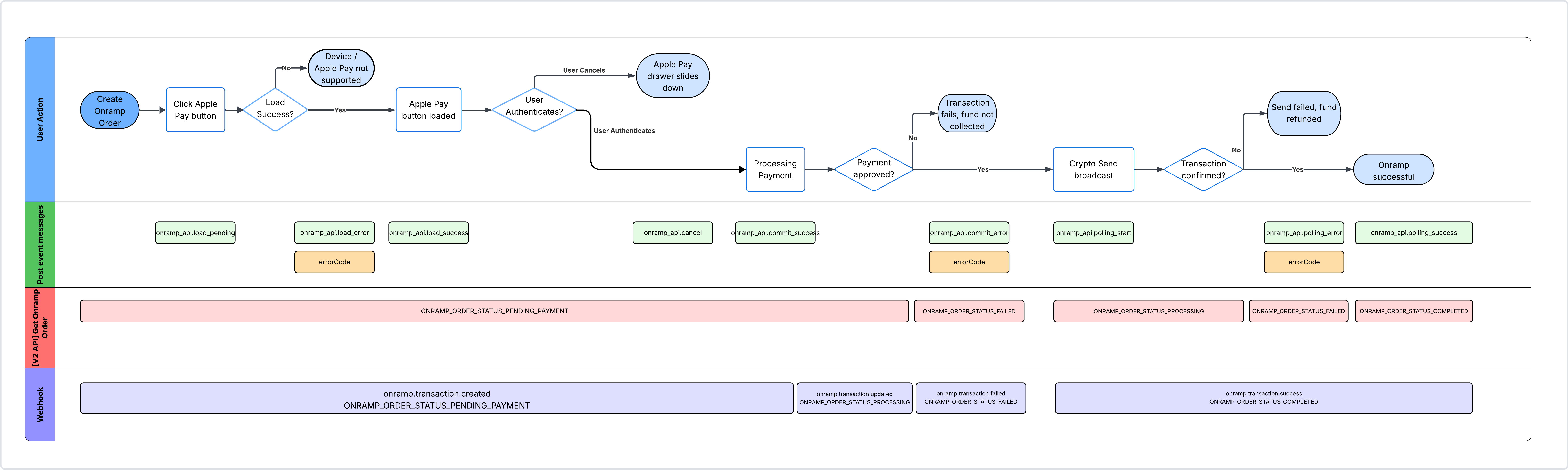
## Order lifecycle
The following diagram shows the complete order lifecycle from order creation through settlement,
including the corresponding post message events and API order statuses at each stage.
 ### Integration guide
#### Tracking transactions
When tracking transactions in your database, create and record transaction when you receive the
`onramp.transaction.updated` event (`ONRAMP_ORDER_STATUS_PROCESSING`) after user has authenticated and committed payment.
This ensures your records reflect only committed transactions, and not potentially abandoned workflow.
#### Handling user cancellation
Webhook event does not emit a terminal failure status when a user abandons the payment flow on the front-end without
completing it. Order will remain in Processing on your backend indefinitely.
If your integration records orders before the `PROCESSING` status, implement your own timeout
mechanism to handle this case.
If user completes the created payment after your timeout has expired, the transaction will still
be processed and captured. You can reconcile any completed transactions by calling the
[Get all onramp transactions](/api-reference/rest-api/onramp-offramp/get-all-onramp-transactions) API.
## Testing
You can test your integration with the Headless Onramp API by creating sandbox orders. To create a sandbox order, just
prefix the `partnerUserRef` parameter in your call to the [Create Onramp Order API](/api-reference/v2/rest-api/onramp/create-an-onramp-order#body-partner-user-ref)
with the string `sandbox-`. Doing so will result in your transaction always succeeding, but your debit card will never be charged.
For the `phoneNumber` parameter, you can use any random phone number, as long as it's in a valid US phone number format (example: +1 international code + US area code + 7 digit number; +12345678901)
### Web app testing
When using a `partnerUserRef` prefixed with `sandbox-`, embedding the payment link is always allowed on `http://localhost` (for local web or iOS simulator testing) and `http://10.0.2.2` (for Android emulator testing), so no domain registration is required for local testing.
You must also append a sandbox query parameter to the payment link URL — this is required for local dev embedding and replaces the real payment sheet with a fake popup. Use the parameter that matches the payment method in your API request:
* For Apple Pay: append `&useApplePaySandbox=true`
* For Google Pay: append `&useGooglePaySandbox=true`
### Android app testing
You can test Google Pay in your Android app without production approval by using the sandbox order flow described above. The Google Pay test suite allows you to validate your WebView integration before submitting your app for approval. See the [Google Pay test and deploy guide](https://developers.google.com/pay/api/android/guides/test-and-deploy/integration-checklist) for details.
## Troubleshooting
* When integrating via iframe, make sure to include the `allow=payment` attribute on the iframe element.
* For Android WebView integrations, ensure that `javaScriptEnabled` is set to `true` and `PaymentRequestEnabled` is set to `true` on your `WebSettings`.
* If Google Pay is not appearing on a test device, verify that the device meets Google's [minimum requirements](https://developers.google.com/pay/api/android/guides/recipes/using-android-webview).
* Mobile integrations (iOS and Android) may not function properly if your app is not subscribed to post message events. This applies even during local testing — ensure your post message listener is wired up before loading the payment link.
## Reference Implementation
To explore our full set of Onramp demo applications across web, backend, and mobile, see the [Onramp demo app collateral](/get-started/demo-apps/starter/onramp-demo-app).
Check out our [Apple Pay web demo](https://onramp-demo-application-git-main-coinbase-vercel.vercel.app/apple-pay) to see
the experience in action. This demo shows how Apple Pay can be embedded directly in your web app for a seamless onramp experience.
The source code is available [here](https://github.com/coinbase/onramp-demo-application).
For a full React Native / Expo mobile reference implementation that showcases the Onramp v2 API, CDP Wallets, and Apple Pay integration, check out the [Onramp v2 mobile demo app](https://testflight.apple.com/join/s4VZYcej). Source code is available [here](https://github.com/coinbase/onramp-v2-mobile-demo/)
For native iOS implementations, see our [iOS WKWebView demo](https://github.com/coinbase/onramp-v2-mobile-demo/tree/master/standalone-sample/ios-native-wkwebview) which shows how to embed the Apple Pay flow in a native app using WKWebView and handle payment events through the `cbOnramp` message handler.
### Integration guide
#### Tracking transactions
When tracking transactions in your database, create and record transaction when you receive the
`onramp.transaction.updated` event (`ONRAMP_ORDER_STATUS_PROCESSING`) after user has authenticated and committed payment.
This ensures your records reflect only committed transactions, and not potentially abandoned workflow.
#### Handling user cancellation
Webhook event does not emit a terminal failure status when a user abandons the payment flow on the front-end without
completing it. Order will remain in Processing on your backend indefinitely.
If your integration records orders before the `PROCESSING` status, implement your own timeout
mechanism to handle this case.
If user completes the created payment after your timeout has expired, the transaction will still
be processed and captured. You can reconcile any completed transactions by calling the
[Get all onramp transactions](/api-reference/rest-api/onramp-offramp/get-all-onramp-transactions) API.
## Testing
You can test your integration with the Headless Onramp API by creating sandbox orders. To create a sandbox order, just
prefix the `partnerUserRef` parameter in your call to the [Create Onramp Order API](/api-reference/v2/rest-api/onramp/create-an-onramp-order#body-partner-user-ref)
with the string `sandbox-`. Doing so will result in your transaction always succeeding, but your debit card will never be charged.
For the `phoneNumber` parameter, you can use any random phone number, as long as it's in a valid US phone number format (example: +1 international code + US area code + 7 digit number; +12345678901)
### Web app testing
When using a `partnerUserRef` prefixed with `sandbox-`, embedding the payment link is always allowed on `http://localhost` (for local web or iOS simulator testing) and `http://10.0.2.2` (for Android emulator testing), so no domain registration is required for local testing.
You must also append a sandbox query parameter to the payment link URL — this is required for local dev embedding and replaces the real payment sheet with a fake popup. Use the parameter that matches the payment method in your API request:
* For Apple Pay: append `&useApplePaySandbox=true`
* For Google Pay: append `&useGooglePaySandbox=true`
### Android app testing
You can test Google Pay in your Android app without production approval by using the sandbox order flow described above. The Google Pay test suite allows you to validate your WebView integration before submitting your app for approval. See the [Google Pay test and deploy guide](https://developers.google.com/pay/api/android/guides/test-and-deploy/integration-checklist) for details.
## Troubleshooting
* When integrating via iframe, make sure to include the `allow=payment` attribute on the iframe element.
* For Android WebView integrations, ensure that `javaScriptEnabled` is set to `true` and `PaymentRequestEnabled` is set to `true` on your `WebSettings`.
* If Google Pay is not appearing on a test device, verify that the device meets Google's [minimum requirements](https://developers.google.com/pay/api/android/guides/recipes/using-android-webview).
* Mobile integrations (iOS and Android) may not function properly if your app is not subscribed to post message events. This applies even during local testing — ensure your post message listener is wired up before loading the payment link.
## Reference Implementation
To explore our full set of Onramp demo applications across web, backend, and mobile, see the [Onramp demo app collateral](/get-started/demo-apps/starter/onramp-demo-app).
Check out our [Apple Pay web demo](https://onramp-demo-application-git-main-coinbase-vercel.vercel.app/apple-pay) to see
the experience in action. This demo shows how Apple Pay can be embedded directly in your web app for a seamless onramp experience.
The source code is available [here](https://github.com/coinbase/onramp-demo-application).
For a full React Native / Expo mobile reference implementation that showcases the Onramp v2 API, CDP Wallets, and Apple Pay integration, check out the [Onramp v2 mobile demo app](https://testflight.apple.com/join/s4VZYcej). Source code is available [here](https://github.com/coinbase/onramp-v2-mobile-demo/)
For native iOS implementations, see our [iOS WKWebView demo](https://github.com/coinbase/onramp-v2-mobile-demo/tree/master/standalone-sample/ios-native-wkwebview) which shows how to embed the Apple Pay flow in a native app using WKWebView and handle payment events through the `cbOnramp` message handler.