> ## Documentation Index
> Fetch the complete documentation index at: https://docs.cdp.coinbase.com/llms.txt
> Use this file to discover all available pages before exploring further.
# Create a recurring report in Portal
## Overview
Access and download reports from your project in the [CDP Portal](https://portal.cdp.coinbase.com/). Reports provide detailed insights into your project's transfers and activity.
Match transfers with internal accounting systems.
Maintain audit trails for regulatory requirements.
Generate transfer summaries for finance teams.
Track transfer volumes, fees, and failure rates.
Currently, Portal Reports support:
* **Transfer Reports** only — a detailed view of all [transfers](/api-reference/v2/rest-api/transfers/transfers) processed through your project
* **Recurring schedules** — daily, weekly, or monthly (no one-time reports)
* **SFTP delivery** — reports are delivered as CSV files to your SFTP server
## 1. Create a recurring report
Navigate to **Reports** in [CDP Portal](https://portal.cdp.coinbase.com/).
Click the **Create recurring report** button.
## 2. Enter report data
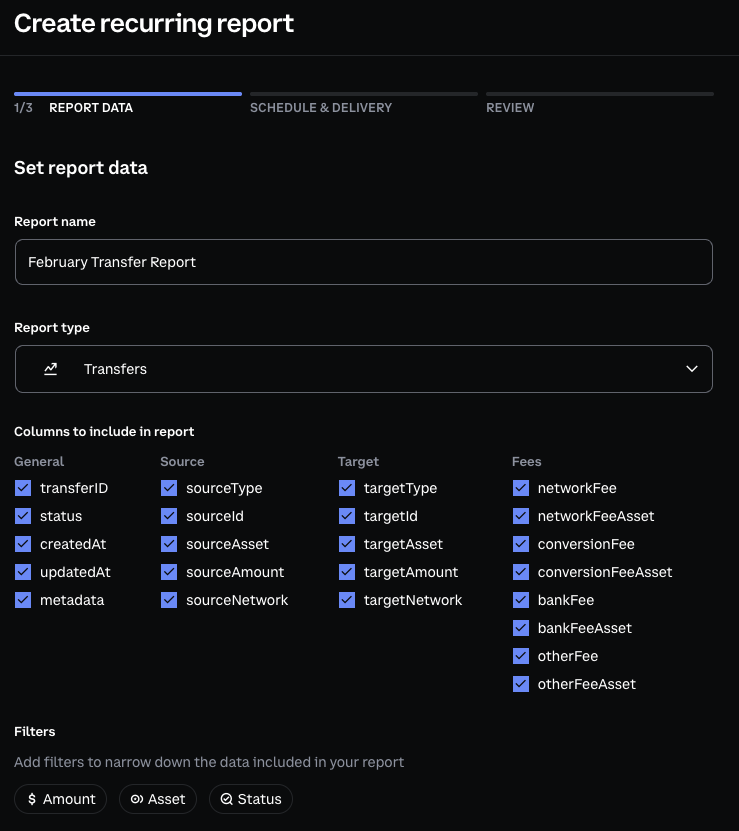
Name your report and select the columns to include. Add filters to narrow down the data if needed.
For example, for a Transfers report:
 ### Available columns
The available columns are organized into the following categories:
| Column | Description |
| :----------- | :-------------------------------------------------------------------------------------------------------------------- |
| `transferID` | The unique identifier for the transfer (e.g., `transfer_af2937b0-9846-4fe7-bfe9-ccc22d935114`). |
| `status` | The current status of the transfer: `quoted`, `processing`, `completed`, `failed`, or `expired`. |
| `createdAt` | The date and time when the transfer was created (ISO 8601 format). |
| `updatedAt` | The date and time when the transfer was last updated (ISO 8601 format). |
| `metadata` | Optional key-value pairs attached to the transfer for your reference. See [Metadata](/payments/metadata) for details. |
The source is where funds are transferred **from**.
| Column | Description |
| :-------------- | :--------------------------------------------------------------------------------------- |
| `sourceType` | The type of the transfer source. Can be `account`, `paymentMethod`, or `onchainAddress`. |
| `sourceId` | The unique identifier of the source (account ID, payment method ID, or onchain address). |
| `sourceAsset` | The asset symbol being transferred from the source (e.g., `usdc`, `eth`, `btc`). |
| `sourceAmount` | The amount debited from the source in atomic units of the `sourceAsset`. |
| `sourceNetwork` | The blockchain network of the source (e.g., `base`, `ethereum`), if applicable. |
The target is where funds are transferred **to**.
| Column | Description |
| :-------------- | :------------------------------------------------------------------------------------------------------- |
| `targetType` | The type of the transfer target. Can be `account`, `paymentMethod`, `onchainAddress`, or `emailAddress`. |
| `targetId` | The unique identifier of the target (account ID, payment method ID, onchain address, or email). |
| `targetAsset` | The asset symbol received by the target (e.g., `usdc`, `eth`, `btc`). |
| `targetAmount` | The amount credited to the target in atomic units of the `targetAsset`. |
| `targetNetwork` | The blockchain network of the target (e.g., `base`, `ethereum`), if applicable. |
Transfer fees vary by source, target, amount, and transfer type. All fees are disclosed upfront when a transfer is created.
| Column | Description |
| :------------------- | :------------------------------------------------------------------------------ |
| `networkFee` | Onchain transaction costs to complete the transfer (e.g., ETH gas fees). |
| `networkFeeAsset` | The asset symbol used for network fees (typically the native token like `eth`). |
| `conversionFee` | Fees for exchanging between different assets. |
| `conversionFeeAsset` | The asset symbol used for conversion fees. |
| `bankFee` | Traditional banking fees for fiat transfers (e.g., wire transfer fees). |
| `bankFeeAsset` | The asset symbol used for bank fees (typically `usd`). |
| `otherFee` | Any additional fees not covered by the above categories. |
| `otherFeeAsset` | The asset symbol used for other fees. |
Not all fee columns will have values for every transfer. For example, a crypto-to-crypto transfer won't have `bankFee`, and an internal transfer may not have `networkFee`.
### Available filters
Narrow down which transfers to include in your report:
| Filter | Description |
| :----- | :----------------------------------------------------------------------------- |
| Status | Filter by transfer status: `quoted`, `processing`, `completed`, `failed`, etc. |
| Asset | Filter by source asset or destination asset (e.g., `USDC`, `ETH`). |
| Amount | Filter by source amount or destination amount ranges. |
Once finished, click **Continue** in the lower-right corner.
## 2. Setup schedule and delivery
### Schedule frequency
Select a start date and frequency for your recurring report:
| Frequency | Runs | Data window |
| :-------- | :------------------------------------ | :---------------------------------------------------------------------- |
| Daily | Every day | Previous full day (midnight to midnight UTC) |
| Weekly | Same day each week as your start date | Previous full week (up to midnight UTC) |
| Monthly | 1st of each month | Previous full month (e.g., a report on August 1st includes all of July) |
All scheduled reports run between **00:00 and 02:00 UTC**.
You can optionally set an end date to stop generating reports after a specific date.
### Configure SFTP delivery
Reports are delivered as CSV files via SFTP. To configure delivery:
### Available columns
The available columns are organized into the following categories:
| Column | Description |
| :----------- | :-------------------------------------------------------------------------------------------------------------------- |
| `transferID` | The unique identifier for the transfer (e.g., `transfer_af2937b0-9846-4fe7-bfe9-ccc22d935114`). |
| `status` | The current status of the transfer: `quoted`, `processing`, `completed`, `failed`, or `expired`. |
| `createdAt` | The date and time when the transfer was created (ISO 8601 format). |
| `updatedAt` | The date and time when the transfer was last updated (ISO 8601 format). |
| `metadata` | Optional key-value pairs attached to the transfer for your reference. See [Metadata](/payments/metadata) for details. |
The source is where funds are transferred **from**.
| Column | Description |
| :-------------- | :--------------------------------------------------------------------------------------- |
| `sourceType` | The type of the transfer source. Can be `account`, `paymentMethod`, or `onchainAddress`. |
| `sourceId` | The unique identifier of the source (account ID, payment method ID, or onchain address). |
| `sourceAsset` | The asset symbol being transferred from the source (e.g., `usdc`, `eth`, `btc`). |
| `sourceAmount` | The amount debited from the source in atomic units of the `sourceAsset`. |
| `sourceNetwork` | The blockchain network of the source (e.g., `base`, `ethereum`), if applicable. |
The target is where funds are transferred **to**.
| Column | Description |
| :-------------- | :------------------------------------------------------------------------------------------------------- |
| `targetType` | The type of the transfer target. Can be `account`, `paymentMethod`, `onchainAddress`, or `emailAddress`. |
| `targetId` | The unique identifier of the target (account ID, payment method ID, onchain address, or email). |
| `targetAsset` | The asset symbol received by the target (e.g., `usdc`, `eth`, `btc`). |
| `targetAmount` | The amount credited to the target in atomic units of the `targetAsset`. |
| `targetNetwork` | The blockchain network of the target (e.g., `base`, `ethereum`), if applicable. |
Transfer fees vary by source, target, amount, and transfer type. All fees are disclosed upfront when a transfer is created.
| Column | Description |
| :------------------- | :------------------------------------------------------------------------------ |
| `networkFee` | Onchain transaction costs to complete the transfer (e.g., ETH gas fees). |
| `networkFeeAsset` | The asset symbol used for network fees (typically the native token like `eth`). |
| `conversionFee` | Fees for exchanging between different assets. |
| `conversionFeeAsset` | The asset symbol used for conversion fees. |
| `bankFee` | Traditional banking fees for fiat transfers (e.g., wire transfer fees). |
| `bankFeeAsset` | The asset symbol used for bank fees (typically `usd`). |
| `otherFee` | Any additional fees not covered by the above categories. |
| `otherFeeAsset` | The asset symbol used for other fees. |
Not all fee columns will have values for every transfer. For example, a crypto-to-crypto transfer won't have `bankFee`, and an internal transfer may not have `networkFee`.
### Available filters
Narrow down which transfers to include in your report:
| Filter | Description |
| :----- | :----------------------------------------------------------------------------- |
| Status | Filter by transfer status: `quoted`, `processing`, `completed`, `failed`, etc. |
| Asset | Filter by source asset or destination asset (e.g., `USDC`, `ETH`). |
| Amount | Filter by source amount or destination amount ranges. |
Once finished, click **Continue** in the lower-right corner.
## 2. Setup schedule and delivery
### Schedule frequency
Select a start date and frequency for your recurring report:
| Frequency | Runs | Data window |
| :-------- | :------------------------------------ | :---------------------------------------------------------------------- |
| Daily | Every day | Previous full day (midnight to midnight UTC) |
| Weekly | Same day each week as your start date | Previous full week (up to midnight UTC) |
| Monthly | 1st of each month | Previous full month (e.g., a report on August 1st includes all of July) |
All scheduled reports run between **00:00 and 02:00 UTC**.
You can optionally set an end date to stop generating reports after a specific date.
### Configure SFTP delivery
Reports are delivered as CSV files via SFTP. To configure delivery:
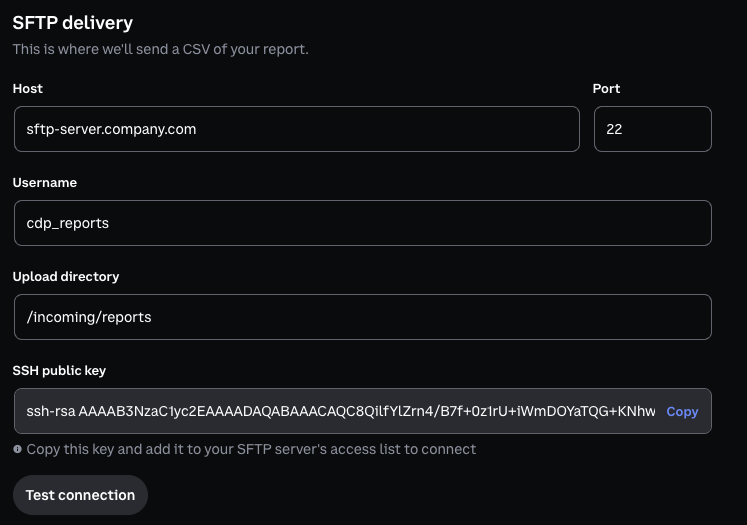 1. Enter your SFTP host, port, username, and remote path.
2. Copy the SSH public key provided by CDP and add the public key to your SFTP server's authorized keys file.
3. Click **Test connection** to verify the setup.
## 3. Review and create report
On the final step, review your report configuration and click **Create report** to set up your recurring report.
## 4. Check status and manage reports
On the **Reports** dashboard, you can see all recurring reports you have created and their completion status. Select a report to:
* View report details and history
* Modify schedule, filters, or delivery settings
* Enable or disable the schedule
* Delete the report
***
## Additional information
### SFTP IP allowlist
If your SFTP server restricts inbound connections by IP address, add the following CDP IP addresses to your firewall or security group rules:
| IP address |
| :--------------- |
| `44.197.125.86` |
| `54.159.132.131` |
| `18.235.42.46` |
| `44.195.76.177` |
| `52.2.138.32` |
| `44.199.174.45` |
Ensure all six IP addresses are allowlisted. CDP may deliver reports from any of these addresses.
1. Enter your SFTP host, port, username, and remote path.
2. Copy the SSH public key provided by CDP and add the public key to your SFTP server's authorized keys file.
3. Click **Test connection** to verify the setup.
## 3. Review and create report
On the final step, review your report configuration and click **Create report** to set up your recurring report.
## 4. Check status and manage reports
On the **Reports** dashboard, you can see all recurring reports you have created and their completion status. Select a report to:
* View report details and history
* Modify schedule, filters, or delivery settings
* Enable or disable the schedule
* Delete the report
***
## Additional information
### SFTP IP allowlist
If your SFTP server restricts inbound connections by IP address, add the following CDP IP addresses to your firewall or security group rules:
| IP address |
| :--------------- |
| `44.197.125.86` |
| `54.159.132.131` |
| `18.235.42.46` |
| `44.195.76.177` |
| `52.2.138.32` |
| `44.199.174.45` |
Ensure all six IP addresses are allowlisted. CDP may deliver reports from any of these addresses.