> ## Documentation Index
> Fetch the complete documentation index at: https://docs.cdp.coinbase.com/llms.txt
> Use this file to discover all available pages before exploring further.
# Demo App Tutorial
export const TypeScriptConfigRequirement = () => {
return <>
TypeScript users: Set moduleResolution: "node16" or "nodenext" in your tsconfig.json (not the legacy "node") to avoid compilation errors with the CDP SDK.
;
};
## Overview
Build a complete React demo app from scratch to learn CDP wallets! This tutorial uses `cdp-create-app` to create a working app, then explains the key concepts and code.
## Prerequisites
* A free [CDP Portal](https://portal.cdp.coinbase.com) account and project
* [Node.js 22+](https://nodejs.org/en/download)
* A node package manager installed (i.e., `npm`, `pnpm`, or `yarn`)
* Basic familiarity with React and TypeScript
* Configured your domain in CDP Portal (see below)
**Step 1: Access CDP Portal**
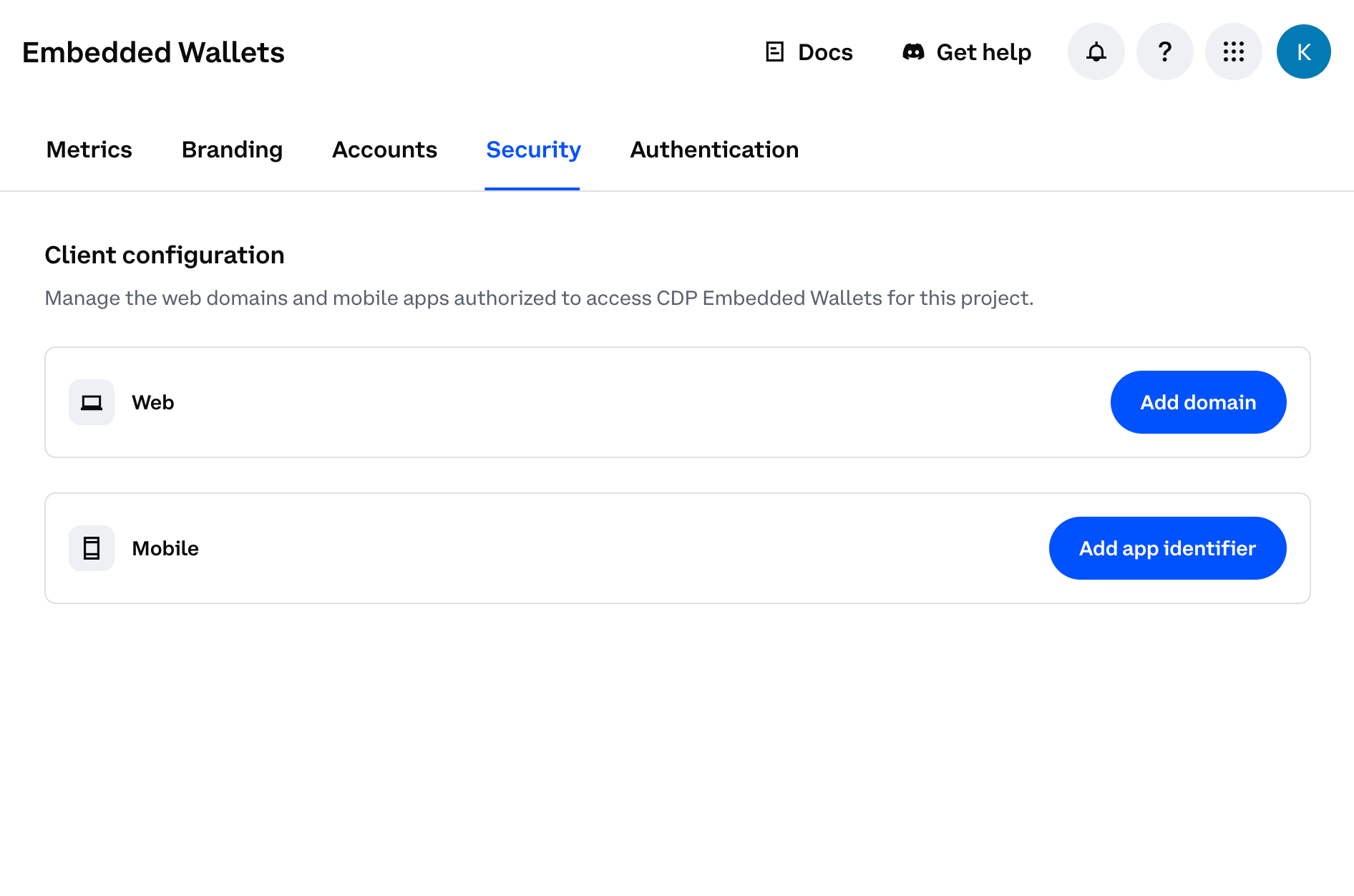
Navigate to the [Security Configuration](https://portal.cdp.coinbase.com/products/embedded-wallets/security) in CDP Portal, and click **Add domain** to include your local app.
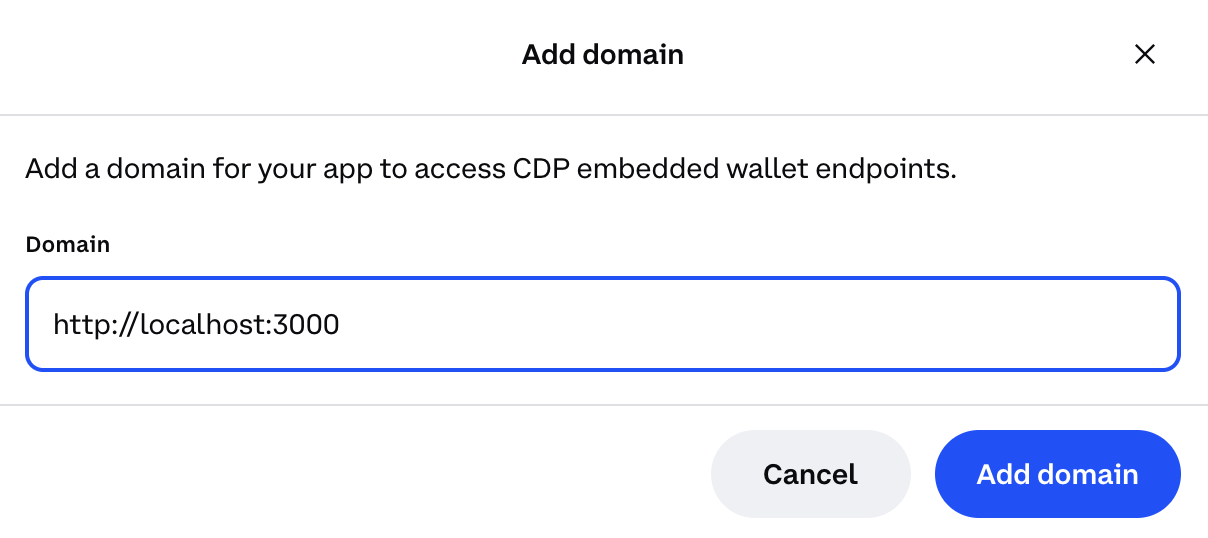
**Step 2: Add your domain**
* For local development: Use `http://localhost:3000` (or your preferred port)
* For production: Use your actual domain (e.g., `https://yourapp.com`)
For production apps, only add your actual production domain. Do not add `localhost` to production CDP projects as malicious apps running locally could impersonate your frontend and abuse your project credentials.
**Step 3: Save your changes**
Click **Add domain** again to save your changes.
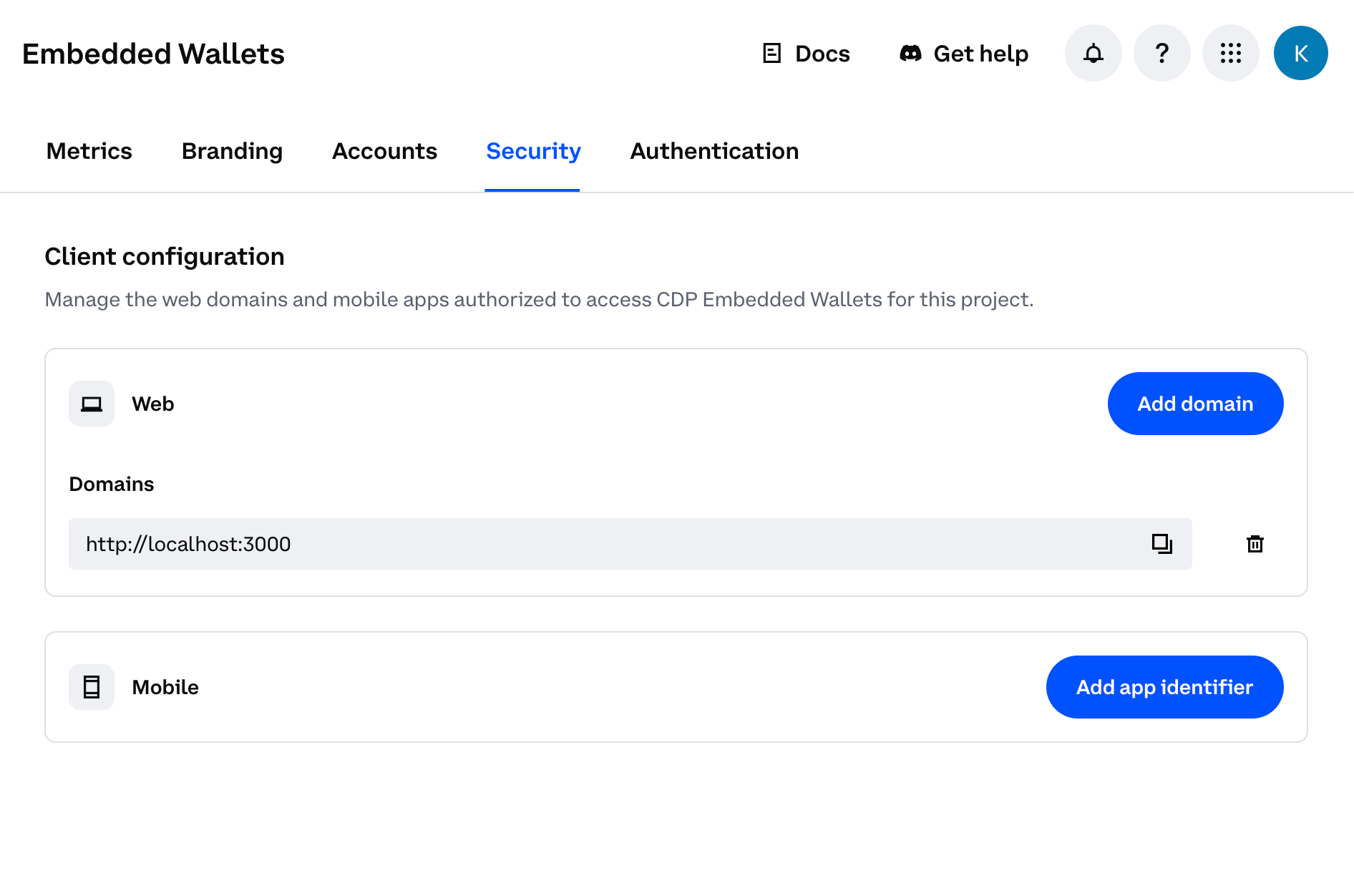
You should see your domain listed in the CDP Portal dashboard. The allowlist will take effect immediately upon saving.
## Create the demo app
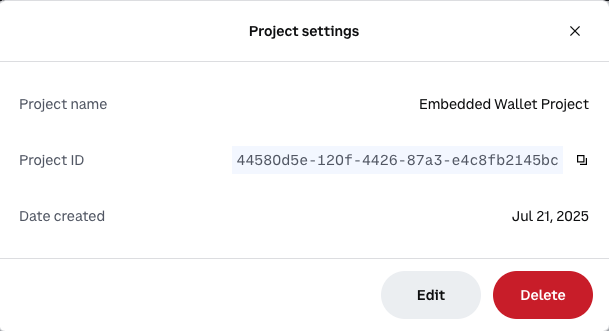
Navigate to [CDP Portal](https://portal.cdp.coinbase.com) and select your project from the top-left dropdown. Clicking the gear icon will take you to your project details:
Copy the **Project ID** value. You will use this in the next step when configuring your demo app.
Use the latest version of `create-cdp-app` to create a new demo app. Replace `` with your actual project ID from the previous step:
```bash npm theme={null}
npm create @coinbase/cdp-app@latest cdp-app-react -- --template react --project-id
```
```bash pnpm theme={null}
pnpm create @coinbase/cdp-app@latest cdp-app-react -- --template react --project-id
```
```bash yarn theme={null}
yarn create @coinbase/cdp-app@latest cdp-app-react -- --template react --project-id
```
You will be prompted to choose between EVM EOA (Regular Accounts), EVM Smart Accounts, or Solana Accounts:
```console theme={null}
Account Type:
❯ EVM EOA (Regular Accounts)
EVM Smart Accounts
Solana Accounts
```
You will be prompted to confirm the localhost domain (which you should have already configured in the setup above):
```console theme={null}
✔ Confirm you have whitelisted 'http://localhost:3000' by typing 'y' … y
```
Navigate to your project directory, install dependencies, and start the development server:
```bash npm theme={null}
cd cdp-app-react
npm install
npm run dev
```
```bash pnpm theme={null}
cd cdp-app-react
pnpm install
pnpm dev
```
```bash yarn theme={null}
cd cdp-app-react
yarn install
yarn dev
```
On successful startup, you should see similar to the following:
```console theme={null}
VITE v7.0.5 ready in 268 ms
➜ Local: http://localhost:3000/
➜ Network: use --host to expose
➜ press h + enter to show help
```
## Demo your new wallet
Now that your user wallet is configured and your app is running, let's try it out.
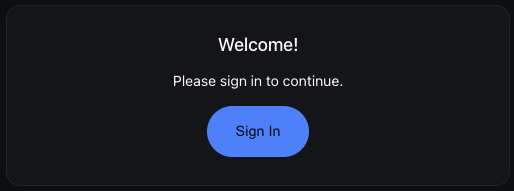
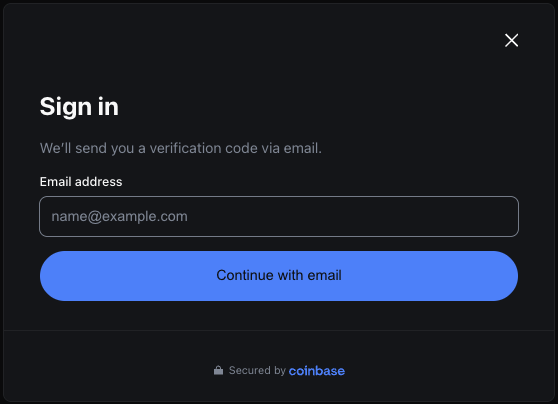
Head to [http://localhost:3000](http://localhost:3000) and click the **Sign In** button.
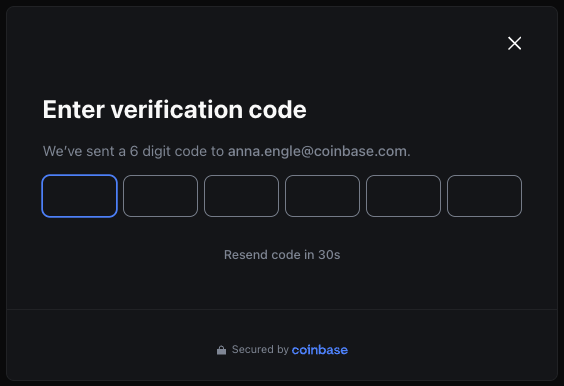
Enter the verification code sent to your e-mail.
Congrats! Your new user wallet has been created, authenticated, and is ready to use on the [Base Sepolia](https://sepolia.basescan.org/) network if you selected an EVM account type, or [Solana Devnet](https://explorer.solana.com?cluster=devnet) if you selected Solana Accounts.
What is Base?
**Base** is a fast, low-cost blockchain built by Coinbase. **Base Sepolia** is its test network where you can experiment with fake money (testnet ETH) before deploying to production.
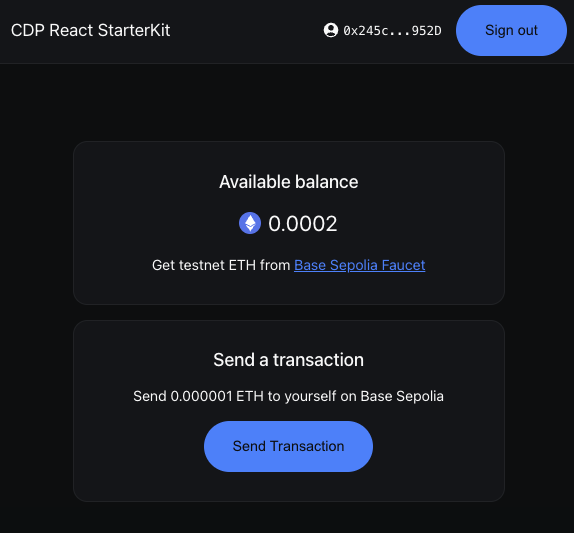
From the demo app, you can copy-and-paste your wallet address from the top-right corner. You can also monitor your wallet balance and (eventually -- keep reading!) send transactions. You should see similar to the following:
Find record of your new wallet on Base Sepolia explorer using the URL: `https://sepolia.basescan.org/address/YOUR-WALLET-ADDRESS`.
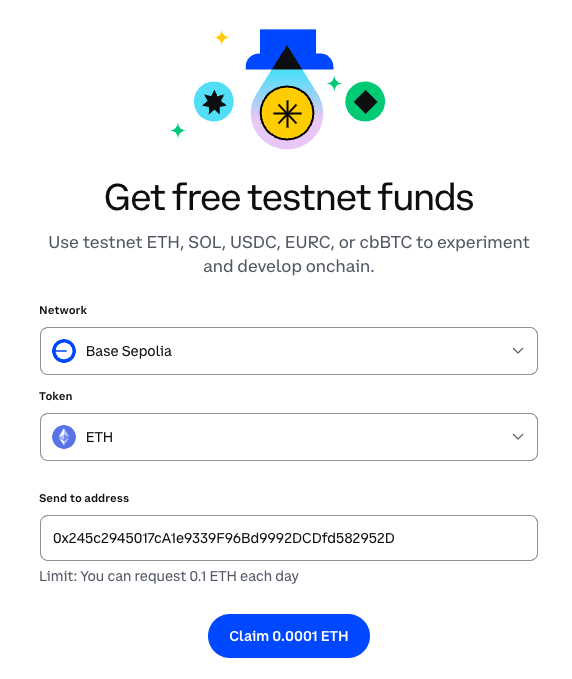
Before you can send transactions, you'll need to fund your wallet with the network gas token. Follow the link to request testnet funds from a Base or Solana [Faucet](/faucets/introduction/welcome).
What is a transaction?
A blockchain transaction transfers cryptocurrency between wallets. Unlike bank transfers, they're:
* **Public**: Visible on the blockchain
* **Permanent**: Cannot be reversed
* **Fast**: Usually complete in seconds
* **Fee-based**: Require "gas" fees to process
What are testnet funds?
**Testnet funds** are fake cryptocurrency for testing. You get them free from a **faucet** (a service that "drips" test ETH to developers). Testnet funds are "play money" you can use for experimenting, without risking real money.
Now that your wallet has testnet ETH, you can send your first transaction!
For EVM accounts, the demo app allows you to send 0.000001 ETH to yourself as a test.
For Solana accounts, it will similarly send 0.000000001 SOL.
Click **Send Transaction** to initiate the transfer. Once complete, you'll see a transaction hash that you can look up on the blockchain explorer.
🎉 You've successfully created a user wallet and sent your first transaction! Try adding some [React Hooks](/sdks/cdp-sdks-v2/frontend/@coinbase/cdp-hooks) or additional [components](/wallets/client-side-development/react-components) to expand your app.
## How it works
Want to customize your app or understand how CDP makes wallets so simple? Let's look at the key components that power your new user wallet.
### File structure
The demo app is built with React and [Vite](https://vite.dev/), organized into these main files:
```
src/
├── App.tsx # Main app component with authentication state
├── SignInScreen.tsx # Sign-in UI component
├── SignedInScreen.tsx # Post-authentication UI with balance tracking
├── Header.tsx # Header with wallet address and auth button
├── Transaction.tsx # Transaction sending component
├── UserBalance.tsx # Balance display component
├── Loading.tsx # Loading state component
├── Icons.tsx # Icon components
├── config.ts # CDP configuration
├── theme.ts # Custom theme configuration
├── main.tsx # Entry point
└── index.css # Styles
```
You can explore the package for this demo in more detail at [npmjs.com](https://www.npmjs.com/package/@coinbase/create-cdp-app?activeTab=code).
### Entry point + provider setup
`src/main.tsx` demonstrates how to wrap your app with the `CDPReactProvider` to enable CDP functionality throughout the component tree.
```tsx src/main.tsx theme={null}
import { type Config, CDPReactProvider } from "@coinbase/cdp-react";
import { StrictMode } from "react";
import { createRoot } from "react-dom/client";
import App from "./App.tsx";
import { CDP_CONFIG } from "./config.ts";
import { theme } from "./theme.ts";
import "./index.css";
const config: Config = {
...CDP_CONFIG,
ethereum: {
createOnLogin: "eoa",
},
appName: "Your App Name", // Your app's display name shown in the wallet UI
appLogoUrl: "your-app-logo-url", // URL to your app's logo displayed during authentication
authMethods: ["email", "sms"],
};
createRoot(document.getElementById("root")!).render(
,
);
```
The `CDP_CONFIG` contains your **Project ID** from setup, stored securely in an environment variable (`VITE_CDP_PROJECT_ID`).
By default the app creates an EVM EOA account for the user on sign in.
To create a Smart Account, set `ethereum.createOnLogin` to `smart` in the config.
You may create both an EVM (EOA or Smart) account and a Solana account on login.
To create a Solana account, set `solana.createOnLogin` to `true` in the config.
For the following examples, we will be assuming an EVM EOA account setup.
### Auth state management
`src/App.tsx` demonstrates how CDP simplifies wallet state management with two simple hooks:
```tsx src/App.tsx theme={null}
import { useIsInitialized, useIsSignedIn } from "@coinbase/cdp-hooks";
import Loading from "./Loading";
import SignedInScreen from "./SignedInScreen";
import SignInScreen from "./SignInScreen";
function App() {
const { isInitialized } = useIsInitialized();
const { isSignedIn } = useIsSignedIn();
return (
);
}
export default App;
```
CDP provides these powerful hooks:
* `useIsInitialized()`: Know when the SDK is ready (no manual provider checks!)
* `useIsSignedIn()`: Instant auth status (no complex wallet connection state)
Unlike traditional Web3 apps that manage wallet providers, connection states, account changes, and network switches, CDP handles everything behind the scenes. Your app just checks if the user is signed in.
### Sign-in interface
`src/SignInScreen.tsx` showcases how to provide the Sign in experience to your users.
```tsx src/SignInScreen.tsx theme={null}
import { AuthButton } from "@coinbase/cdp-react/components/AuthButton";
function SignInScreen() {
return (
Sign in
Welcome!
Please sign in to continue.
);
}
export default SignInScreen;
```
The `AuthButton` component handles:
* **Email authentication**: No seed phrases to manage - users maintain full control
* **Wallet creation**: Automatically creates a self-custodial wallet on first sign-in
* **Session management**: Handles tokens and persistence
* **UI/UX**: Professional auth flow with email verification
### The authenticated experience
`src/SignedInScreen.tsx` shows how to manage the authenticated session of a user.
Two important hooks to highlight here:
* `useEvmAddress()`: Fetch the user's wallet address
* `useIsSignedIn()`: Returns true if the user is signed in
For balance tracking, we query the blockchain using the user's wallet address:
```tsx src/SignedInScreen.tsx theme={null}
const getBalance = useCallback(async () => {
if (!evmAddress) return;
// Query the blockchain for the user's evm address
const balance = await client.getBalance({
address: evmAddress,
});
setBalance(balance);
}, [evmAddress]);
// Refresh balance on mount and every 500ms
useEffect(() => {
getBalance();
const interval = setInterval(getBalance, 500);
return () => clearInterval(interval);
}, [getBalance]);
```
Finally, we compose the authenticated UI to return the user's balance:
```tsx src/SignedInScreen.tsx theme={null}
return (
<>
{isSignedIn && evmAddress && (
)}
);
}
```
### Sending transactions
`src/Transaction.tsx` demonstrates how to send ETH using CDP's transaction hooks.
Key CDP hooks to highlight here:
* `useSendEvmTransaction()`: Sends transactions from the user's address
* `useEvmAddress()`: Gets the current user's address
We create the transaction handler using CDP's `sendEvmTransaction`:
```tsx src/Transaction.tsx theme={null}
const handleSendTransaction = useCallback(
async (e: MouseEvent) => {
if (!evmAddress) return;
e.preventDefault();
setIsPending(true);
const { transactionHash } = await sendEvmTransaction({
transaction: {
to: evmAddress, // Send to yourself for testing
value: 1000000000000n, // 0.000001 ETH in wei
gas: 21000n, // Standard ETH transfer gas limit
chainId: 84532, // Base Sepolia testnet
type: "eip1559", // Modern gas fee model
},
evmAccount: evmAddress, // Your self-custodial wallet address
network: "base-sepolia", // Target network
});
setTransactionHash(transactionHash);
setIsPending(false);
onSuccess?.();
},
[evmAddress, sendEvmTransaction, onSuccess],
);
```
Finally, the UI renders different content based on the transaction state:
```tsx src/Transaction.tsx theme={null}
return (
<>
{transactionHash ? (
// Success state
<>
)}
)}
);
```
The component intelligently handles different states:
* Loading skeletons while fetching balance
* Empty wallet state with faucet link
* Ready state with send button
* Success state with transaction hash and option to send another
### Wallet management header
`src/Header.tsx` provides a clean interface for users to view their wallet address and manage their session.
```tsx src/Header.tsx theme={null}
function Header() {
const evmAddress = useEvmAddress(); // Get the user's address
const [isCopied, setIsCopied] = useState(false);
const copyAddress = async () => {
await navigator.clipboard.writeText(evmAddress);
setIsCopied(true);
// Reset after 2 seconds
setTimeout(() => setIsCopied(false), 2000);
};
return (
);
}
```
Key features:
* Shows ETH balance with an icon
* Loading skeleton while fetching balance
* Direct link to the faucet for getting testnet funds
### Theme customization
The demo app provides extensive theming capabilities through CSS variables and the CDP theme system, allowing you to fully customize the look and feel to match your brand.
```tsx src/theme.ts theme={null}
export const theme: Partial = {
"colors-bg-default": "var(--cdp-example-card-bg-color)",
"colors-bg-overlay": "var(--cdp-example-bg-overlay-color)",
"colors-bg-skeleton": "var(--cdp-example-bg-skeleton-color)",
"colors-bg-primary": "var(--cdp-example-accent-color)",
"colors-bg-secondary": "var(--cdp-example-bg-low-contrast-color)",
"colors-fg-default": "var(--cdp-example-text-color)",
"colors-fg-muted": "var(--cdp-example-text-secondary-color)",
"colors-fg-primary": "var(--cdp-example-accent-color)",
"colors-fg-onPrimary": "var(--cdp-example-accent-foreground-color)",
"colors-fg-onSecondary": "var(--cdp-example-text-color)",
"colors-line-default": "var(--cdp-example-card-border-color)",
"colors-line-heavy": "var(--cdp-example-text-secondary-color)",
"colors-line-primary": "var(--cdp-example-accent-color)",
"font-family-sans": "var(--cdp-example-font-family)",
"font-size-base": "var(--cdp-example-base-font-size)",
// ... maps to CSS variables defined in index.css
};
```
The app includes:
* **Dark mode support**: Enables light and dark themes
* **Customizable colors**: Primary accent, backgrounds, text, borders, and more
* **Typography control**: Font family and base font size
* **Responsive breakpoints**: Different styles for mobile, tablet, and desktop
* **Component theming**: Style CDP components like buttons, inputs, and modals
All theme values are defined as CSS variables in `index.css`, making it easy to rebrand the entire app by updating a few color values.
For more information on theme customization, see the [theme customization documentation](/wallets/client-side-development/react-components#3-customize-theme-optional).
## What to read next
Quick integration guide for existing React apps
Learn about available hooks like useSignInWithEmail, useEvmAddress, useSendSolanaTransaction, and more
Explore pre-built components for authentication, wallet management, and transactions
Build with Next.js using "use client" requirements
 **Step 2: Add your domain**
* For local development: Use `http://localhost:3000` (or your preferred port)
* For production: Use your actual domain (e.g., `https://yourapp.com`)
**Step 2: Add your domain**
* For local development: Use `http://localhost:3000` (or your preferred port)
* For production: Use your actual domain (e.g., `https://yourapp.com`)
 You should see your domain listed in the CDP Portal dashboard. The allowlist will take effect immediately upon saving.
 Copy the **Project ID** value. You will use this in the next step when configuring your demo app.
 Find record of your new wallet on Base Sepolia explorer using the URL: `https://sepolia.basescan.org/address/YOUR-WALLET-ADDRESS`.
 🎉 You've successfully created a user wallet and sent your first transaction! Try adding some [React Hooks](/sdks/cdp-sdks-v2/frontend/@coinbase/cdp-hooks) or additional [components](/wallets/client-side-development/react-components) to expand your app.
 {balance}
)}
{balance}
)}