> ## Documentation Index
> Fetch the complete documentation index at: https://docs.cdp.coinbase.com/llms.txt
> Use this file to discover all available pages before exploring further.
# Cross-Platform (Web, iOS, Android)
export const Tags = ({tags, className}) => {
if (!tags || !Array.isArray(tags)) {
return null;
}
return
{tags.map((tag, index) => {tag})}
;
};
## Overview
User wallets provide components that work with [Coinbase’s Cross-Platform Onramp API](/onramp/headless-onramp/overview) to enable developers to move money from fiat to onchain economies. A user can fund their wallet with their Coinbase account.
This guide shows how to get started with the `FundModal` component.
Coinbase Onramp is enabled by default in **trial mode** for every CDP project. In trial mode, there are limitations to how much you can purchase.
The `Fund` and `FundModal` components will cost real money unless you [enable mock buys and sends](https://docs.cdp.coinbase.com/onramp/developer-guidance/faq#can-i-test-my-onramp-integration-by-creating-mock-buys-and-sends%3F).
## Quickstart
Get started in under 5 minutes with CDP's [`create-cdp-app`](https://www.npmjs.com/package/@coinbase/create-cdp-app) package!
### Prerequisites
* A free [CDP Portal](https://portal.cdp.coinbase.com) account and project
* [Node.js 22+](https://nodejs.org/en/download)
* A node package manager installed (i.e., `npm`, `pnpm`, or `yarn`)
* Basic familiarity with Next.js and React
* A Coinbase Retail account, if you wish to fund your wallet with Coinbase
### 1. Add your domain
To begin, add your domain to the list of [allowed domains](https://portal.cdp.coinbase.com/products/embedded-wallets/security) in CDP Portal.
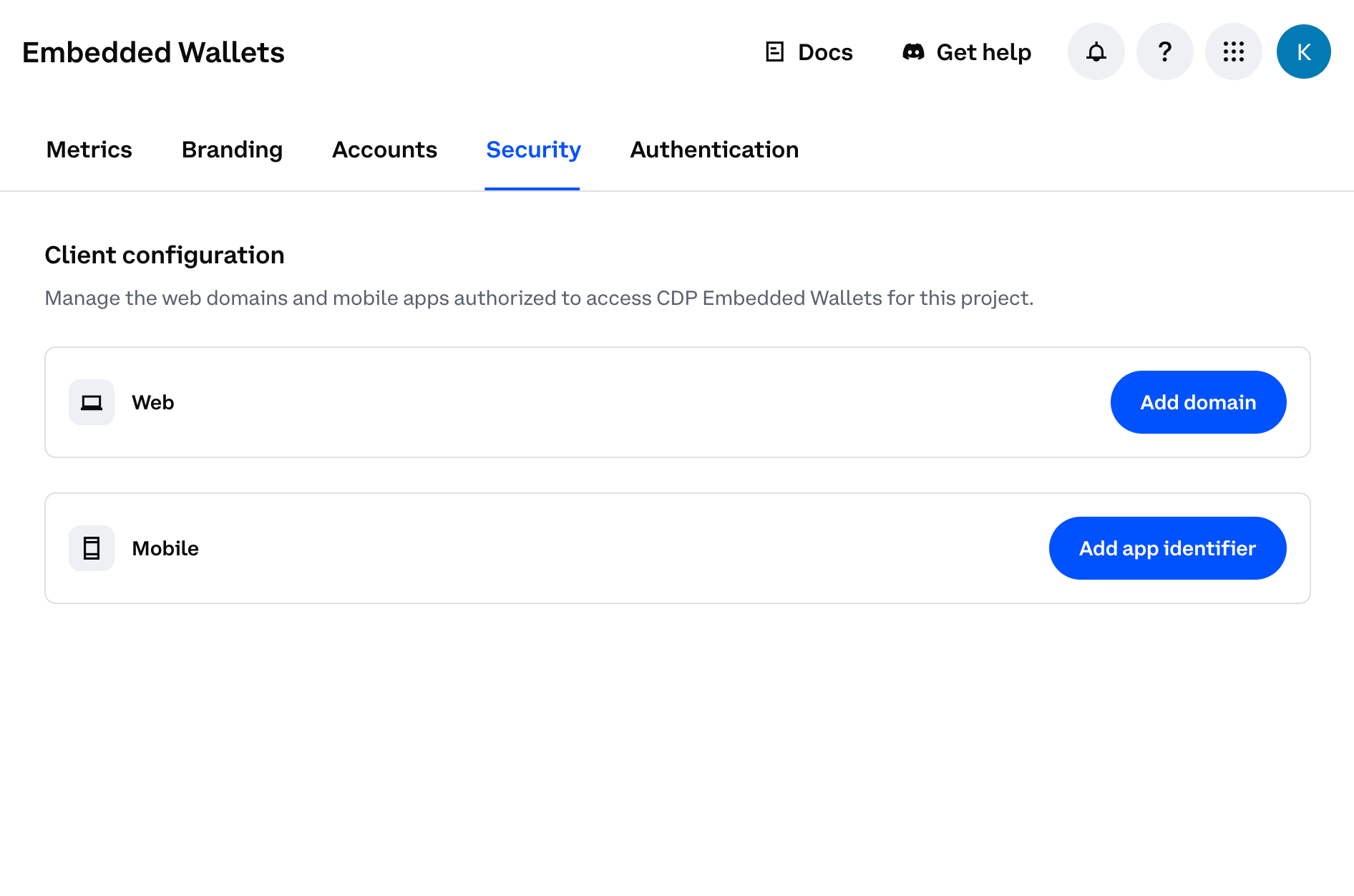
Navigate to the [Security Configuration](https://portal.cdp.coinbase.com/products/embedded-wallets/security) in CDP Portal, and click **Add domain** to include your local app.
 Use `http://localhost:3000` (the port your demo app will run locally).
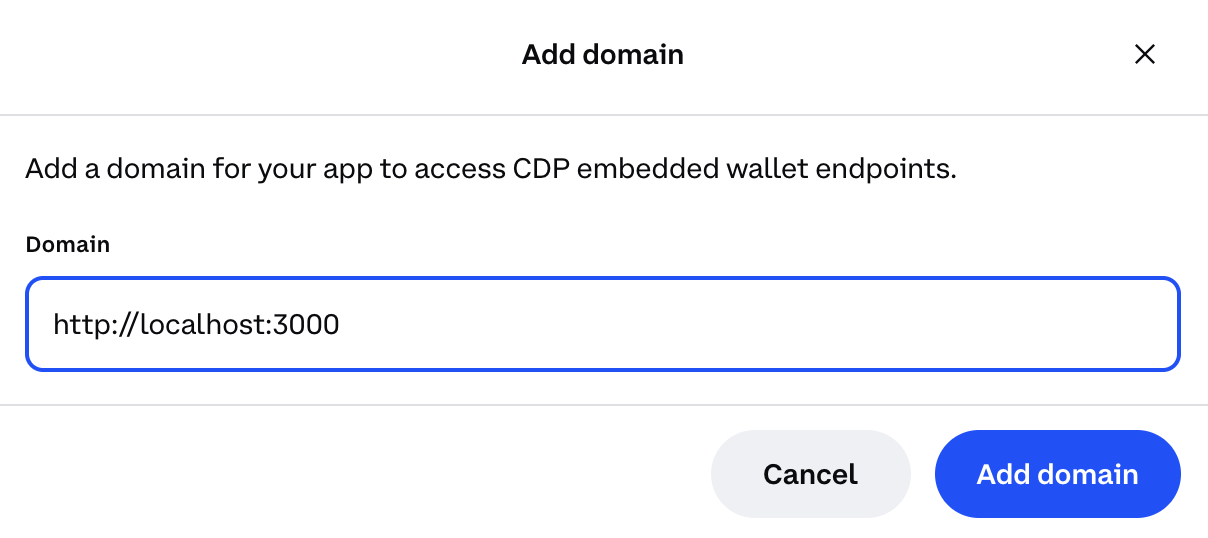 Do not do this in your CDP project intended for production use. Malicious apps running locally could impersonate your frontend and abuse your project credentials.
Click **Add domain** again to save your changes.
Do not do this in your CDP project intended for production use. Malicious apps running locally could impersonate your frontend and abuse your project credentials.
Click **Add domain** again to save your changes.
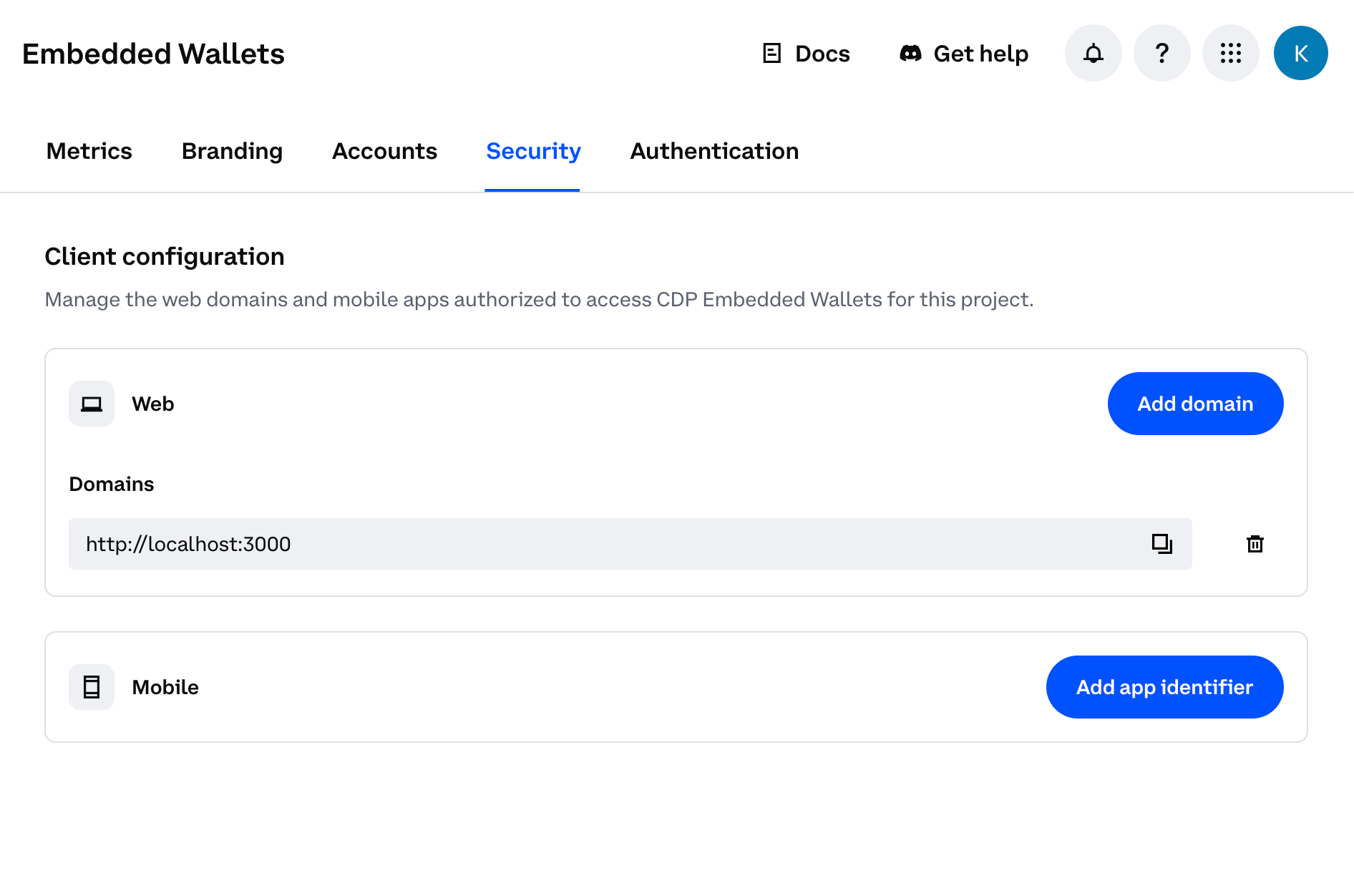 You should see your local app URL listed in the CDP Portal dashboard. The allowlist will take effect immediately upon saving.
### 2. Create the demo app
Navigate to the [**API Keys**](https://portal.cdp.coinbase.com/projects/api-keys) tab of the **CDP Portal**. Create your API key by entering an API key nickname (restrictions are optional).
You should see your local app URL listed in the CDP Portal dashboard. The allowlist will take effect immediately upon saving.
### 2. Create the demo app
Navigate to the [**API Keys**](https://portal.cdp.coinbase.com/projects/api-keys) tab of the **CDP Portal**. Create your API key by entering an API key nickname (restrictions are optional).
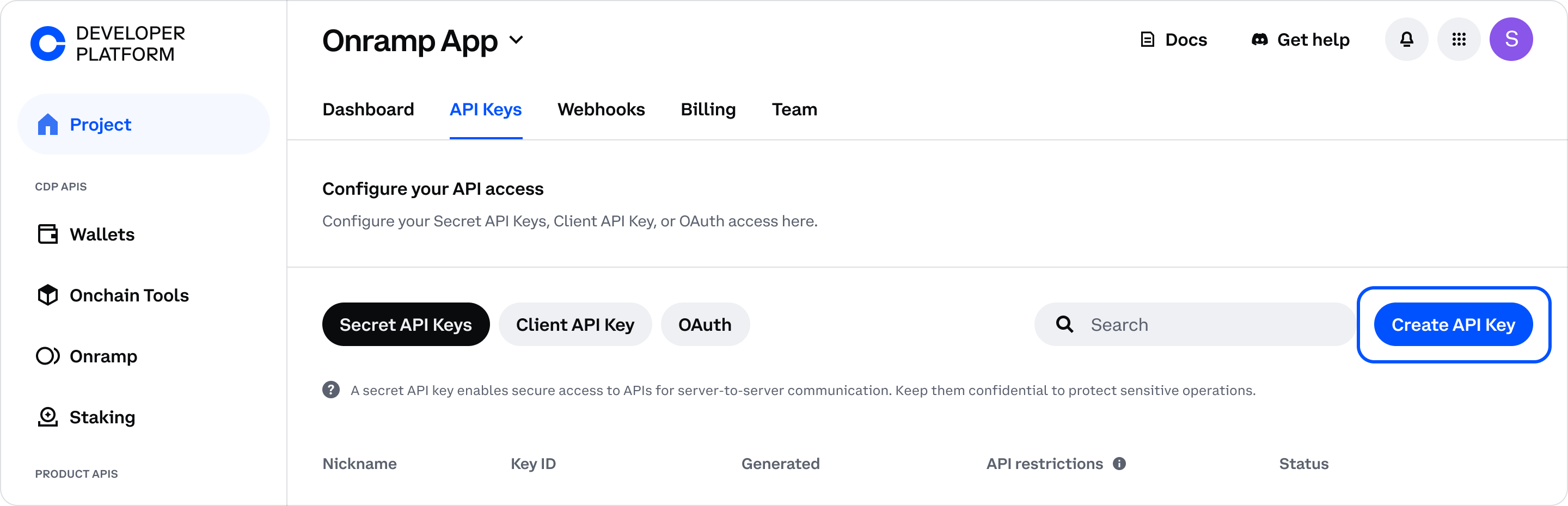 Secure your private/public key pair in a safe location. You will use these in step 3 when configuring your demo app.
**Optional API Key File Download**
For enhanced security, API key files are no longer automatically downloaded. If you need to reference your API key via file path in your code, click the **Download API key** button in the modal to save the key file. Otherwise, you can copy the key details directly from the modal and use them as environment variables (recommended for better security).
Navigate to [CDP Portal](https://portal.cdp.coinbase.com) and select your project from the top-left dropdown. Clicking the gear icon will take you to your project details:
Secure your private/public key pair in a safe location. You will use these in step 3 when configuring your demo app.
**Optional API Key File Download**
For enhanced security, API key files are no longer automatically downloaded. If you need to reference your API key via file path in your code, click the **Download API key** button in the modal to save the key file. Otherwise, you can copy the key details directly from the modal and use them as environment variables (recommended for better security).
Navigate to [CDP Portal](https://portal.cdp.coinbase.com) and select your project from the top-left dropdown. Clicking the gear icon will take you to your project details:
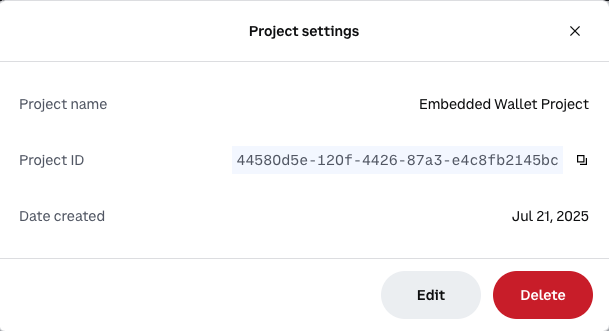 Copy the **Project ID** value. You will use this in the next step when configuring your demo app.
Use the latest version of `create-cdp-app` to create a new demo app using your package manager:
```bash npm theme={null}
npm create @coinbase/cdp-app@latest
```
```bash pnpm theme={null}
pnpm create @coinbase/cdp-app@latest
```
```bash yarn theme={null}
yarn create @coinbase/cdp-app@latest
```
Follow the prompts to configure your app. Name your project, select the **Next.js Full Stack App** template, and paste your project ID from CDP Portal.
The **Next.js Full Stack App** template must be selected because Onramp requires server-side code!
You can choose between EVM EOA (Regular Accounts), EVM [Smart Accounts](/wallets/using-wallets/smart-accounts), or Solana Accounts, and you should enable Onramp.
For this demo app, we will choose EVM EOA (Regular Accounts).
To complete configuration, enter the API Key ID and API Key Secret key pair you created in the previous step and confirm that you have added your domain.
```console theme={null}
✔ Project name: … cdp-app-nextjs
✔ Template: › Next.js Full Stack App
✔ CDP Project ID: … 8c21e60b-c8af-4286-a0d3-111111111111
✔ Account Type: › EVM EOA (Regular Accounts)
✔ Enable Coinbase Onramp?: … yes
✔ CDP API Key ID: … 9b12d52e-d2be-5516-bd90-111111111111
✔ CDP API Key Secret: … *****************************************
✔ Confirm you have whitelisted 'http://localhost:3000' … yes
```
Navigate to your project and start the development server:
```bash npm theme={null}
cd cdp-app-nextjs
npm install
npm run dev
```
```bash pnpm theme={null}
cd cdp-app-nextjs
pnpm install
pnpm dev
```
```bash yarn theme={null}
cd cdp-app-nextjs
yarn install
yarn dev
```
Your app will be available at [http://localhost:3000](http://localhost:3000).
### 3. Demo your new wallet
Now that your user wallet is configured and your app is running, let's try it out.
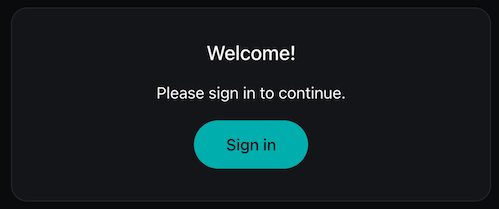
Head to [http://localhost:3000](http://localhost:3000) and click the **Sign In** button.
Copy the **Project ID** value. You will use this in the next step when configuring your demo app.
Use the latest version of `create-cdp-app` to create a new demo app using your package manager:
```bash npm theme={null}
npm create @coinbase/cdp-app@latest
```
```bash pnpm theme={null}
pnpm create @coinbase/cdp-app@latest
```
```bash yarn theme={null}
yarn create @coinbase/cdp-app@latest
```
Follow the prompts to configure your app. Name your project, select the **Next.js Full Stack App** template, and paste your project ID from CDP Portal.
The **Next.js Full Stack App** template must be selected because Onramp requires server-side code!
You can choose between EVM EOA (Regular Accounts), EVM [Smart Accounts](/wallets/using-wallets/smart-accounts), or Solana Accounts, and you should enable Onramp.
For this demo app, we will choose EVM EOA (Regular Accounts).
To complete configuration, enter the API Key ID and API Key Secret key pair you created in the previous step and confirm that you have added your domain.
```console theme={null}
✔ Project name: … cdp-app-nextjs
✔ Template: › Next.js Full Stack App
✔ CDP Project ID: … 8c21e60b-c8af-4286-a0d3-111111111111
✔ Account Type: › EVM EOA (Regular Accounts)
✔ Enable Coinbase Onramp?: … yes
✔ CDP API Key ID: … 9b12d52e-d2be-5516-bd90-111111111111
✔ CDP API Key Secret: … *****************************************
✔ Confirm you have whitelisted 'http://localhost:3000' … yes
```
Navigate to your project and start the development server:
```bash npm theme={null}
cd cdp-app-nextjs
npm install
npm run dev
```
```bash pnpm theme={null}
cd cdp-app-nextjs
pnpm install
pnpm dev
```
```bash yarn theme={null}
cd cdp-app-nextjs
yarn install
yarn dev
```
Your app will be available at [http://localhost:3000](http://localhost:3000).
### 3. Demo your new wallet
Now that your user wallet is configured and your app is running, let's try it out.
Head to [http://localhost:3000](http://localhost:3000) and click the **Sign In** button.
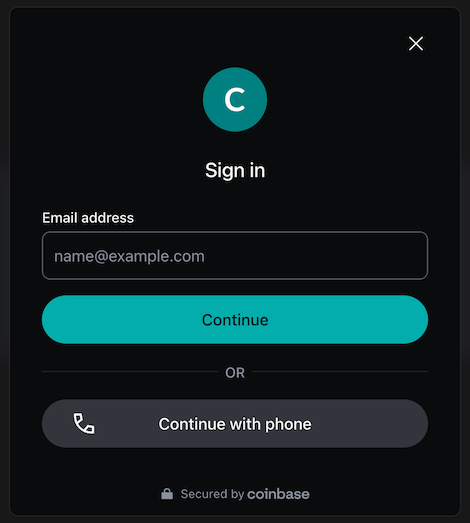 Enter the verification code sent to your e-mail.
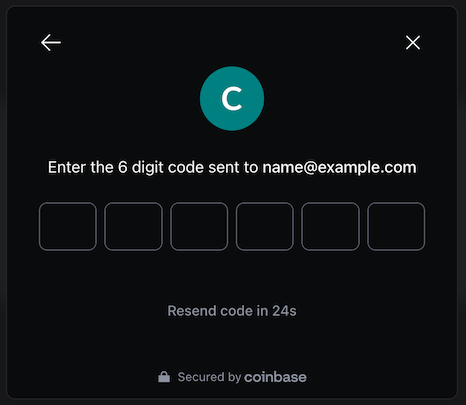 Congrats! Your new user wallet has been created, authenticated, and is ready to use on the [Base](https://basescan.org/) network.
**Base** is a fast, low-cost blockchain built by Coinbase.
From the demo app, you can copy-and-paste your wallet address from the top-right corner. You can also fund your wallet and monitor your balance. You should see similar to the following:
Congrats! Your new user wallet has been created, authenticated, and is ready to use on the [Base](https://basescan.org/) network.
**Base** is a fast, low-cost blockchain built by Coinbase.
From the demo app, you can copy-and-paste your wallet address from the top-right corner. You can also fund your wallet and monitor your balance. You should see similar to the following:
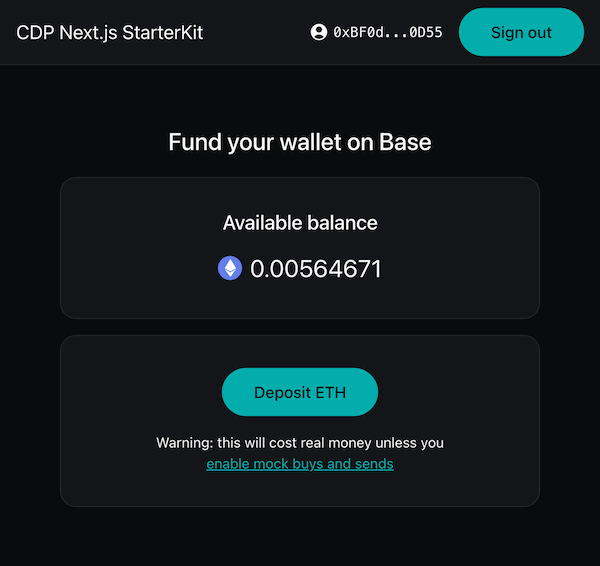 Click the **Deposit ETH** button to start funding your new wallet.
This opens the funding modal where you can specify how much you want to deposit. Choose a preset amount or enter your own, select your preferred payment method, and click **Deposit** to proceed to the Coinbase Onramp widget.
Click the **Deposit ETH** button to start funding your new wallet.
This opens the funding modal where you can specify how much you want to deposit. Choose a preset amount or enter your own, select your preferred payment method, and click **Deposit** to proceed to the Coinbase Onramp widget.
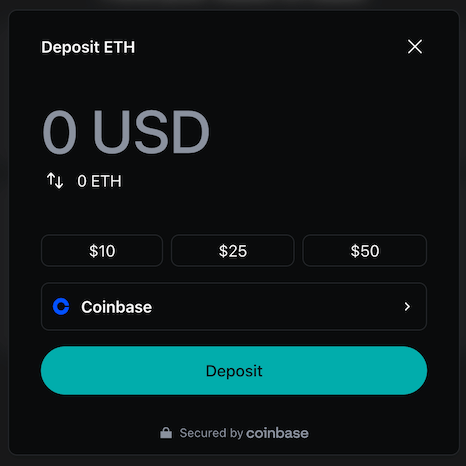 The Coinbase Onramp widget opens for you to review the transaction details. Here, you can verify the payment method, destination address, and total cost before finalizing the purchase.
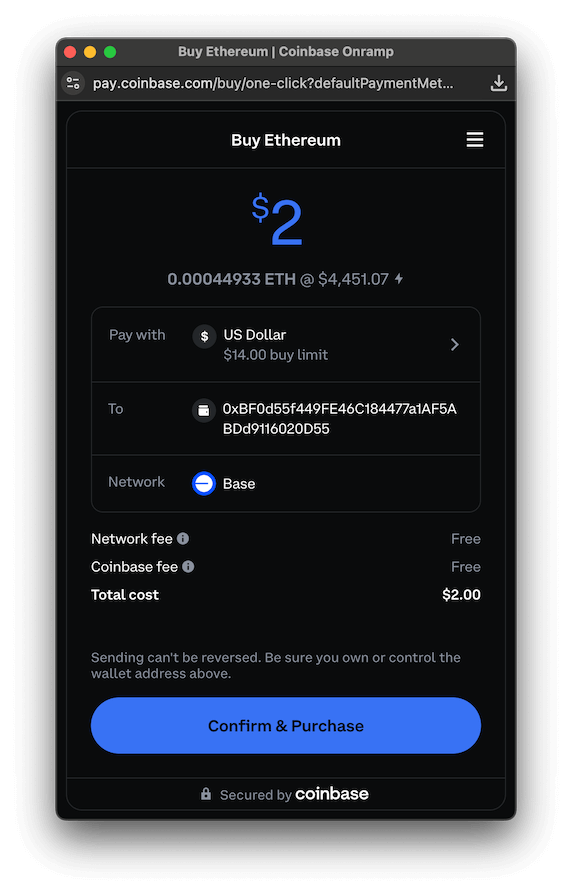 Click **Confirm & Purchase** to complete the transaction.
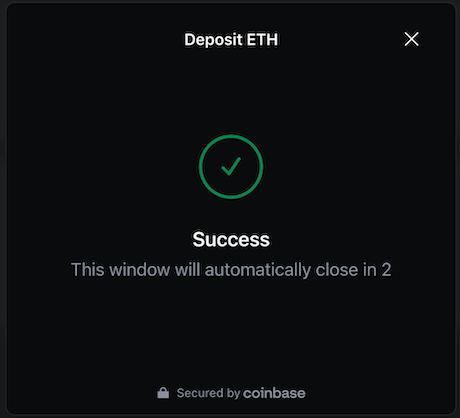
Once the transaction is successful, you'll see a confirmation message. The funds are now being sent to your wallet onchain, and your balance will update shortly.
Click **Confirm & Purchase** to complete the transaction.
Once the transaction is successful, you'll see a confirmation message. The funds are now being sent to your wallet onchain, and your balance will update shortly.
 You can also find record of your wallet and its transaction on Base explorer using the URL: `https://basescan.org/address/YOUR-WALLET-ADDRESS`.
A blockchain transaction transfers cryptocurrency between wallets. Unlike bank transfers, they're:
* **Public**: Visible on the blockchain
* **Permanent**: Cannot be reversed
* **Fast**: Usually complete in seconds
* **Fee-based**: Require "gas" fees to process
## Manual setup
If you'd prefer to set integrate Onramp manually, this guide will show you how to do so.
### Prerequisites
* A free [CDP Portal](https://portal.cdp.coinbase.com) account and project
* [Node.js 22+](https://nodejs.org/en/download)
* A node package manager installed (i.e., `npm`, `pnpm`, or `yarn`)
* Basic familiarity with Next.js and React
* A CDP project with user wallets enabled
* `@coinbase/cdp-core` and `@coinbase/cdp-hooks` installed
* A Coinbase Retail account, if you wish to fund your wallet with Coinbase
### 1. Create a Secret API Key
**Optional API Key File Download**
For enhanced security, API key files are no longer automatically downloaded. If you need to reference your API key via file path in your code, click the **Download API key** button in the modal to save the key file. Otherwise, you can copy the key details directly from the modal and use them as environment variables (recommended for better security).
Navigate to the [**API Keys**](https://portal.cdp.coinbase.com/projects/api-keys) tab of the **CDP Portal**. Create your API key by entering an API key nickname (restrictions are optional).
Secure your private/public key pair in a safe location.
Update your app's `.env` file with the **API Key ID** and **API Key Secret**.
```dotenv theme={null}
# CDP API Key
CDP_API_KEY_ID=[paste your API Key ID here]
CDP_API_KEY_SECRET=[paste your API Key Secret here]
```
### 2. Install `@coinbase/cdp-sdk`
The Onramp API requires authentication with a JWT. You can use [`@coinbase/cdp-sdk`](https://www.npmjs.com/package/@coinbase/cdp-sdk) to generate one.
```bash npm theme={null}
npm install @coinbase/cdp-sdk
```
```bash pnpm theme={null}
pnpm add @coinbase/cdp-sdk
```
```bash yarn theme={null}
yarn add @coinbase/cdp-sdk
```
### 3. Create `lib/cdp-auth.ts`
Create a new file `lib/cdp-auth.ts` in your project root. This file exports helper functions to generate JWTs for authorizing Onramp API calls and provides the base URL for API requests.
```tsx lines expandable lib/cdp-auth.ts theme={null}
import { generateJwt } from "@coinbase/cdp-sdk/auth";
interface CDPAuthConfig {
requestMethod: string;
requestHost: string;
requestPath: string;
audience?: string[];
}
/**
* Get CDP API credentials from environment variables
*
* @throws Error if credentials are not configured
*/
export function getCDPCredentials() {
const apiKeyId = process.env.CDP_API_KEY_ID;
const apiKeySecret = process.env.CDP_API_KEY_SECRET;
if (!apiKeyId || !apiKeySecret) {
throw new Error("CDP API credentials not configured");
}
return { apiKeyId, apiKeySecret };
}
/**
* Generate JWT token for CDP API authentication
*
* @param config - Configuration for JWT generation
* @returns JWT token string
*/
export async function generateCDPJWT(config: CDPAuthConfig): Promise {
const { apiKeyId, apiKeySecret } = getCDPCredentials();
return generateJwt({
apiKeyId,
apiKeySecret,
requestMethod: config.requestMethod,
requestHost: config.requestHost,
requestPath: config.requestPath,
});
}
/**
* Base URL for ONRAMP API
* Can change to api.cdp.coinbase.com/platform once session token endpoints are supported in v2 API
*/
export const ONRAMP_API_BASE_URL = "https://api.developer.coinbase.com";
```
This utility file provides:
* `getCDPCredentials()`: Reads your API credentials from environment variables
* `generateCDPJWT()`: Creates authenticated JWT tokens for API calls
* `ONRAMP_API_BASE_URL`: The base URL for all Onramp API requests
These functions will be imported and used in your API routes in the next step.
### 4. Set up server-side endpoints
You will need to create two server-side endpoints to interact with the Onramp API.
The `FundModal` component expects functions that return data in camel-case, so for now the data from the Onramp API needs to be transformed.
The v1 version of the Onramp API returns data with snake case keys. In v2, data will be returned with camel case keys.
```tsx lines expandable lib/to-camel-case.ts theme={null}
type SnakeToCamelCase
You can also find record of your wallet and its transaction on Base explorer using the URL: `https://basescan.org/address/YOUR-WALLET-ADDRESS`.
A blockchain transaction transfers cryptocurrency between wallets. Unlike bank transfers, they're:
* **Public**: Visible on the blockchain
* **Permanent**: Cannot be reversed
* **Fast**: Usually complete in seconds
* **Fee-based**: Require "gas" fees to process
## Manual setup
If you'd prefer to set integrate Onramp manually, this guide will show you how to do so.
### Prerequisites
* A free [CDP Portal](https://portal.cdp.coinbase.com) account and project
* [Node.js 22+](https://nodejs.org/en/download)
* A node package manager installed (i.e., `npm`, `pnpm`, or `yarn`)
* Basic familiarity with Next.js and React
* A CDP project with user wallets enabled
* `@coinbase/cdp-core` and `@coinbase/cdp-hooks` installed
* A Coinbase Retail account, if you wish to fund your wallet with Coinbase
### 1. Create a Secret API Key
**Optional API Key File Download**
For enhanced security, API key files are no longer automatically downloaded. If you need to reference your API key via file path in your code, click the **Download API key** button in the modal to save the key file. Otherwise, you can copy the key details directly from the modal and use them as environment variables (recommended for better security).
Navigate to the [**API Keys**](https://portal.cdp.coinbase.com/projects/api-keys) tab of the **CDP Portal**. Create your API key by entering an API key nickname (restrictions are optional).
Secure your private/public key pair in a safe location.
Update your app's `.env` file with the **API Key ID** and **API Key Secret**.
```dotenv theme={null}
# CDP API Key
CDP_API_KEY_ID=[paste your API Key ID here]
CDP_API_KEY_SECRET=[paste your API Key Secret here]
```
### 2. Install `@coinbase/cdp-sdk`
The Onramp API requires authentication with a JWT. You can use [`@coinbase/cdp-sdk`](https://www.npmjs.com/package/@coinbase/cdp-sdk) to generate one.
```bash npm theme={null}
npm install @coinbase/cdp-sdk
```
```bash pnpm theme={null}
pnpm add @coinbase/cdp-sdk
```
```bash yarn theme={null}
yarn add @coinbase/cdp-sdk
```
### 3. Create `lib/cdp-auth.ts`
Create a new file `lib/cdp-auth.ts` in your project root. This file exports helper functions to generate JWTs for authorizing Onramp API calls and provides the base URL for API requests.
```tsx lines expandable lib/cdp-auth.ts theme={null}
import { generateJwt } from "@coinbase/cdp-sdk/auth";
interface CDPAuthConfig {
requestMethod: string;
requestHost: string;
requestPath: string;
audience?: string[];
}
/**
* Get CDP API credentials from environment variables
*
* @throws Error if credentials are not configured
*/
export function getCDPCredentials() {
const apiKeyId = process.env.CDP_API_KEY_ID;
const apiKeySecret = process.env.CDP_API_KEY_SECRET;
if (!apiKeyId || !apiKeySecret) {
throw new Error("CDP API credentials not configured");
}
return { apiKeyId, apiKeySecret };
}
/**
* Generate JWT token for CDP API authentication
*
* @param config - Configuration for JWT generation
* @returns JWT token string
*/
export async function generateCDPJWT(config: CDPAuthConfig): Promise {
const { apiKeyId, apiKeySecret } = getCDPCredentials();
return generateJwt({
apiKeyId,
apiKeySecret,
requestMethod: config.requestMethod,
requestHost: config.requestHost,
requestPath: config.requestPath,
});
}
/**
* Base URL for ONRAMP API
* Can change to api.cdp.coinbase.com/platform once session token endpoints are supported in v2 API
*/
export const ONRAMP_API_BASE_URL = "https://api.developer.coinbase.com";
```
This utility file provides:
* `getCDPCredentials()`: Reads your API credentials from environment variables
* `generateCDPJWT()`: Creates authenticated JWT tokens for API calls
* `ONRAMP_API_BASE_URL`: The base URL for all Onramp API requests
These functions will be imported and used in your API routes in the next step.
### 4. Set up server-side endpoints
You will need to create two server-side endpoints to interact with the Onramp API.
The `FundModal` component expects functions that return data in camel-case, so for now the data from the Onramp API needs to be transformed.
The v1 version of the Onramp API returns data with snake case keys. In v2, data will be returned with camel case keys.
```tsx lines expandable lib/to-camel-case.ts theme={null}
type SnakeToCamelCase = S extends `${infer T}_${infer U}`
? `${T}${Capitalize>}`
: S;
type CamelizeKeys = T extends readonly unknown[]
? { [K in keyof T]: CamelizeKeys }
: T extends object
? {
[K in keyof T as SnakeToCamelCase]: CamelizeKeys;
}
: T;
/**
* Converts snake_case keys to camelCase in an object or array of objects.
*
* @param {T} obj - The object, array, or string to convert. (required)
* @returns {T} The converted object, array, or string.
*/
export const convertSnakeToCamelCase = (obj: T): CamelizeKeys => {
if (Array.isArray(obj)) {
return obj.map(item => convertSnakeToCamelCase(item)) as CamelizeKeys;
}
if (obj !== null && typeof obj === "object") {
return Object.keys(obj).reduce((acc, key) => {
const camelCaseKey = toCamelCase(key);
(acc as Record)[camelCaseKey] = convertSnakeToCamelCase(
(obj as Record)[key],
);
return acc;
}, {} as CamelizeKeys);
}
return obj as CamelizeKeys;
};
const toCamelCase = (str: string) => {
return str.replace(/_([a-z])/g, (_, letter) => letter.toUpperCase());
};
```
The [Buy Options API](/api-reference/rest-api/onramp-offramp/get-buy-config) provides the available payment methods to the `FundModal` and `Fund` components.
```tsx lines expandable app/api/onramp/buy-options/route.ts theme={null}
import {
type FetchBuyOptions,
type OnrampBuyOptionsSnakeCaseResponse,
} from "@coinbase/cdp-react";
import { NextRequest, NextResponse } from "next/server";
import { generateCDPJWT, getCDPCredentials, ONRAMP_API_BASE_URL } from "@/lib/cdp-auth";
import { convertSnakeToCamelCase } from "@/lib/to-camel-case";
type OnrampBuyOptionsResponseRaw = OnrampBuyOptionsSnakeCaseResponse;
type OnrampBuyOptionsResponse = Awaited>;
/**
* Fetches available buy options (payment currencies and purchasable assets) for onramp
*
* @param request - NextRequest object
* @returns NextResponse object
*/
export async function GET(request: NextRequest) {
try {
// Validate CDP credentials are configured
try {
getCDPCredentials();
} catch (_error) {
return NextResponse.json({ error: "CDP API credentials not configured" }, { status: 500 });
}
/**
* Extract query parameters
* Note: While the API documentation shows all parameters as optional,
* the backend currently requires the 'country' parameter
*/
const searchParams = request.nextUrl.searchParams;
const country = searchParams.get("country");
const subdivision = searchParams.get("subdivision");
const networks = searchParams.get("networks");
// Build query string
const queryParams = new URLSearchParams();
if (country) queryParams.append("country", country);
if (subdivision) queryParams.append("subdivision", subdivision);
if (networks) queryParams.append("networks", networks);
const queryString = queryParams.toString();
const apiPath = "/onramp/v1/buy/options";
const fullPath = apiPath + (queryString ? `?${queryString}` : "");
// Generate JWT for CDP API authentication
const jwt = await generateCDPJWT({
requestMethod: "GET",
requestHost: new URL(ONRAMP_API_BASE_URL).hostname,
requestPath: apiPath,
});
// Call CDP API to get buy options
const response = await fetch(`${ONRAMP_API_BASE_URL}${fullPath}`, {
method: "GET",
headers: {
Authorization: `Bearer ${jwt}`,
"Content-Type": "application/json",
},
});
if (!response.ok) {
console.error("CDP API error:", response.statusText);
const errorText = await response.text();
console.error("Error details:", errorText);
try {
const errorData = JSON.parse(errorText);
return NextResponse.json(
{ error: errorData.message || "Failed to fetch buy options" },
{ status: response.status },
);
} catch {
return NextResponse.json(
{ error: "Failed to fetch buy options" },
{ status: response.status },
);
}
}
const data: OnrampBuyOptionsResponseRaw = await response.json();
const dataCamelCase: OnrampBuyOptionsResponse = convertSnakeToCamelCase(data);
return NextResponse.json(dataCamelCase);
} catch (error) {
console.error("Error fetching buy options:", error);
return NextResponse.json({ error: "Internal server error" }, { status: 500 });
}
}
```
The [Buy Quote API](/api-reference/rest-api/onramp-offramp/create-buy-quote) provides the exchange rate as well as the purchase URL to the `Fund` and `FundModal` components.
```tsx lines expandable app/api/onramp/buy-quote/route.ts theme={null}
import {
type FetchBuyQuote,
type OnrampBuyQuoteSnakeCaseResponse,
} from "@coinbase/cdp-react";
import { NextRequest, NextResponse } from "next/server";
import { generateCDPJWT, getCDPCredentials, ONRAMP_API_BASE_URL } from "@/lib/cdp-auth";
import { convertSnakeToCamelCase } from "@/lib/to-camel-case";
type OnrampBuyQuoteRequest = Parameters[0];
type OnrampBuyQuoteResponseRaw = OnrampBuyQuoteSnakeCaseResponse;
type OnrampBuyQuoteResponse = Awaited>;
/**
* Creates a buy quote for onramp purchase
*
* @param request - Buy quote request parameters
* @returns Buy quote with fees and onramp URL
*/
export async function POST(request: NextRequest) {
try {
const body: OnrampBuyQuoteRequest = await request.json();
// Validate CDP credentials are configured
try {
getCDPCredentials();
} catch (_error) {
return NextResponse.json({ error: "CDP API credentials not configured" }, { status: 500 });
}
// Validate required fields
// Note we don't require the wallet info because this endpoint is used to get an exchange rate. Only the onramp URL requires the wallet info.
if (
!body.purchaseCurrency ||
!body.paymentAmount ||
!body.paymentCurrency ||
!body.paymentMethod ||
!body.country
) {
return NextResponse.json({ error: "Missing required parameters" }, { status: 400 });
}
// Validate US subdivision requirement
if (body.country === "US" && !body.subdivision) {
return NextResponse.json({ error: "State/subdivision is required for US" }, { status: 400 });
}
// Generate JWT for CDP API authentication
const jwt = await generateCDPJWT({
requestMethod: "POST",
requestHost: new URL(ONRAMP_API_BASE_URL).hostname,
requestPath: "/onramp/v1/buy/quote",
});
// Prepare request body for buy quote API
const requestBody = {
purchaseCurrency: body.purchaseCurrency,
purchaseNetwork: body.purchaseNetwork, // Use the wallet's network
paymentAmount: body.paymentAmount,
paymentCurrency: body.paymentCurrency,
paymentMethod: body.paymentMethod,
country: body.country,
subdivision: body.subdivision,
destinationAddress: body.destinationAddress, // Include to get one-click-buy URL
};
// Call CDP Onramp API to get buy quote and URL
const response = await fetch(`${ONRAMP_API_BASE_URL}/onramp/v1/buy/quote`, {
method: "POST",
headers: {
Authorization: `Bearer ${jwt}`,
"Content-Type": "application/json",
},
body: JSON.stringify(requestBody),
});
if (!response.ok) {
console.error("CDP API error:", response.statusText);
const errorText = await response.text();
console.error("Error details:", errorText);
try {
const errorData = JSON.parse(errorText);
return NextResponse.json(
{ error: errorData.message || "Failed to create buy quote" },
{ status: response.status },
);
} catch {
return NextResponse.json(
{ error: "Failed to create buy quote" },
{ status: response.status },
);
}
}
// convert response data to camelCase until migration to API v2 which will return camelCase data
const data: OnrampBuyQuoteResponseRaw = await response.json();
const dataCamelCase: OnrampBuyQuoteResponse = convertSnakeToCamelCase(data);
return NextResponse.json(dataCamelCase);
} catch (error) {
console.error("Error creating buy quote:", error);
return NextResponse.json({ error: "Internal server error" }, { status: 500 });
}
}
```
### 5. `FundModal` component
Finally, you are ready to add the `FundModal` component to your app.
The `FundModal` component requires `fetchBuyOptions` and `fetchBuyQuote` props, which are functions that handle calling the Onramp API via your new server-side endpoints.
```tsx lines expandable lib/onramp-api.ts theme={null}
import {
type FetchBuyOptions,
type FetchBuyQuote,
} from "@coinbase/cdp-react/components/Fund";
/**
* Fetches available buy options for onramp
*
* @param params - Query parameters for buy options
* @returns Buy options including payment currencies and purchasable assets
*/
export const getBuyOptions: FetchBuyOptions = async params => {
const queryParams = new URLSearchParams();
queryParams.append("country", params.country);
if (params?.subdivision) queryParams.append("subdivision", params.subdivision);
const queryString = queryParams.toString();
const url = `/api/onramp/buy-options${queryString ? `?${queryString}` : ""}`;
const response = await fetch(url, {
method: "GET",
headers: {
"Content-Type": "application/json",
},
});
if (!response.ok) {
const errorData = await response.json();
throw new Error(errorData.error || "Failed to fetch buy options");
}
return await response.json();
};
/**
* Creates a buy quote for onramp purchase
*
* @param request - Buy quote request parameters
* @returns Buy quote with fees and onramp URL
*/
export const createBuyQuote: FetchBuyQuote = async request => {
const response = await fetch("/api/onramp/buy-quote", {
method: "POST",
headers: {
"Content-Type": "application/json",
},
body: JSON.stringify(request),
});
if (!response.ok) {
const errorData = await response.json();
throw new Error(errorData.error || "Failed to create buy quote");
}
return await response.json();
};
```
```tsx lines expandable components/FundWallet.tsx theme={null}
"use client";
import {
FundModal,
type FundModalProps,
} from "@coinbase/cdp-react";
import { useEvmAddress } from "@coinbase/cdp-hooks";
import { useCallback } from "react";
import { getBuyOptions, createBuyQuote } from "@/lib/onramp-api";
/**
* A component that wraps the FundModal component
*
* @param props - The props for the FundWallet component
* @param props.onSuccess - The callback function to call when the onramp purchase is successful
* @returns The FundWallet component
*/
export default function FundWallet({ onSuccess }: { onSuccess: () => void }) {
const { evmAddress } = useEvmAddress();
// Get the user's location (i.e. from IP geolocation)
const userCountry = "US";
// If user is in the US, the state is also required
const userSubdivision = userCountry === "US" ? "CA" : undefined;
// Call your buy quote endpoint
const fetchBuyQuote: FundModalProps["fetchBuyQuote"] = useCallback(async params => {
return createBuyQuote(params);
}, []);
// Call your buy options endpoint
const fetchBuyOptions: FundModalProps["fetchBuyOptions"] = useCallback(async params => {
return getBuyOptions(params);
}, []);
return (
);
}
```
You may fund your Solana user wallets using the same FundModal as in the EVM example above.
Just pass in the appropriate values for the `cryptoCurrency`, `network`, and `destinationAddress` props.
```tsx lines expandable components/FundSolanaWallet.tsx theme={null}
"use client";
import {
FundModal,
type FundModalProps,
} from "@coinbase/cdp-react";
import { useSolanaAddress } from "@coinbase/cdp-hooks";
import { useCallback } from "react";
import { getBuyOptions, createBuyQuote } from "@/lib/onramp-api";
/**
* A component that wraps the FundModal component
*
* @param props - The props for the FundWallet component
* @param props.onSuccess - The callback function to call when the onramp purchase is successful
* @returns The FundWallet component
*/
export default function FundWallet({ onSuccess }: { onSuccess: () => void }) {
const { solanaAddress } = useSolanaAddress();
// Get the user's location (i.e. from IP geolocation)
const userCountry = "US";
// If user is in the US, the state is also required
const userSubdivision = userCountry === "US" ? "CA" : undefined;
// Call your buy quote endpoint
const fetchBuyQuote: FundModalProps["fetchBuyQuote"] = useCallback(async params => {
return createBuyQuote(params);
}, []);
// Call your buy options endpoint
const fetchBuyOptions: FundModalProps["fetchBuyOptions"] = useCallback(async params => {
return getBuyOptions(params);
}, []);
return (
);
}
```
## Reference
| Resource | Description |
| ------------------------------------------------------------------------------------ | ----------------------------------------- |
| [Buy options API](/api-reference/rest-api/onramp-offramp/get-buy-options) | Coinbase Onramp Buy Options API reference |
| [Buy quote API](/api-reference/rest-api/onramp-offramp/create-buy-quote) | Coinbase Onramp Buy Quote API reference |
| [Fund README](/sdks/cdp-sdks-v2/frontend/@coinbase/cdp-react/Components/Fund.README) | Component overview and usage |
## What to read next
* **[React Components](/wallets/client-side-development/react-components)**: Explore all available user wallet React components, including authentication, wallet management, and transaction components to build complete wallet experiences
* **[Onramp Overview](/onramp/headless-onramp/overview)**: Learn about the complete Onramp API ecosystem, including advanced features like offramp, webhooks, and transaction monitoring for comprehensive fiat-to-crypto solutions