

Overview
Access and download reports from your project in the CDP Portal. Reports provide detailed insights into your project’s transfers and activity.Reconciliation
Match transfers with internal accounting systems.
Compliance & Audit
Maintain audit trails for regulatory requirements.
Financial Reporting
Generate transfer summaries for finance teams.
Operations Monitoring
Track transfer volumes, fees, and failure rates.
- Transfer Reports only — a detailed view of all transfers processed through your project
- Recurring schedules — daily, weekly, or monthly (no one-time reports)
- SFTP delivery — reports are delivered as CSV files to your SFTP server
1. Create a recurring report
Navigate to Reports in CDP Portal. Click the Create recurring report button.2. Enter report data
Name your report and select the columns to include. Add filters to narrow down the data if needed. For example, for a Transfers report: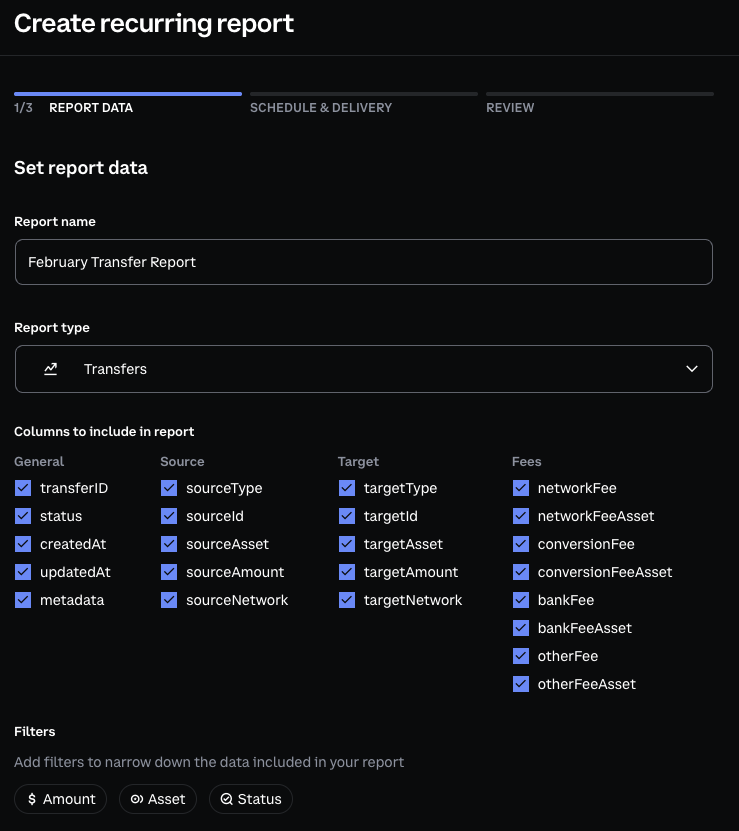
Available columns
The available columns are organized into the following categories:General
General
Source
Source
The source is where funds are transferred from.
Target
Target
The target is where funds are transferred to.
Fees
Fees
Transfer fees vary by source, target, amount, and transfer type. All fees are disclosed upfront when a transfer is created.
Available filters
Narrow down which transfers to include in your report:
Once finished, click Continue in the lower-right corner.
2. Setup schedule and delivery
Schedule frequency
Select a start date and frequency for your recurring report:
All scheduled reports run between 00:00 and 02:00 UTC.
You can optionally set an end date to stop generating reports after a specific date.
Configure SFTP delivery
Reports are delivered as CSV files via SFTP. To configure delivery: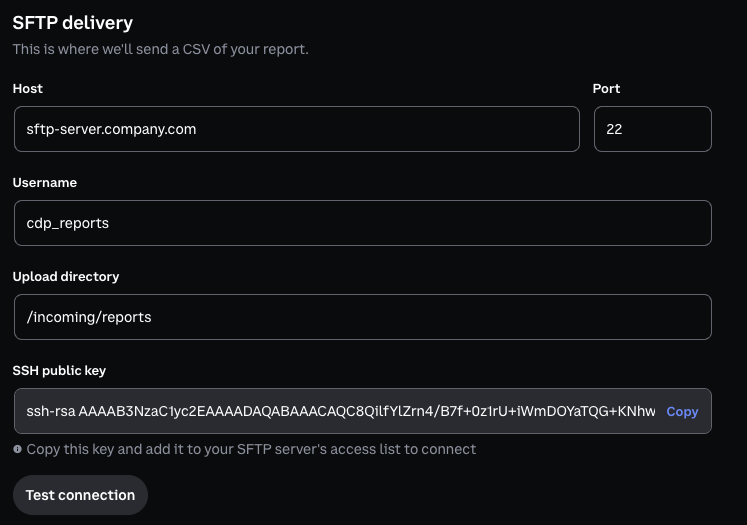
- Enter your SFTP host, port, username, and remote path.
- Copy the SSH public key provided by CDP and add the public key to your SFTP server’s authorized keys file.
- Click Test connection to verify the setup.
3. Review and create report
On the final step, review your report configuration and click Create report to set up your recurring report.4. Check status and manage reports
On the Reports dashboard, you can see all recurring reports you have created and their completion status. Select a report to:- View report details and history
- Modify schedule, filters, or delivery settings
- Enable or disable the schedule
- Delete the report
Additional information
SFTP IP allowlist
If your SFTP server restricts inbound connections by IP address, add the following CDP IP addresses to your firewall or security group rules:Ensure all six IP addresses are allowlisted. CDP may deliver reports from any of these addresses.