

Overview
Google Play Integrity lets the CDP backend verify that requests come from your genuine Android app running on a device with valid Google Play Services. The SDK handles token generation automatically. You only need to install the package and add one import statement, and configure the CDP Portal.Prerequisites
- A free CDP Portal account and project
- A React Native app using the CDP React Native SDK
- A Google Cloud project with Play Integrity API enabled
- A physical Android device running Android 6.0 (API level 23) or later with Google Play Services
Play Store
Play Integrity validates tokens against the signing certificate and package name registered with Google Play. Your app must:- Be signed with your release key (debug builds will not pass integrity checks).
- Be distributed via the Play Store (any track, including Internal Testing). Apps installed via ADB are rejected.
- Have a package name in your CDP Portal Security configuration that exactly matches the
applicationIdin yourbuild.gradle(e.g.com.example.myapp).
Setup
Install packages
react-native-device-info is required so the SDK can read your app’s package name and match it against the configuration in the CDP Portal.Add the import to your app entry point
Add the following import to your app’s entry point (This import self-registers the attestation module with the CDP SDK.
No additional function calls are needed.
index.ts or index.js):Set up Google Cloud
- Open Google Cloud Console and select or create a project.
- Navigate to APIs & Services → Library and enable the Play Integrity API.
- Navigate to IAM & Admin → Service Accounts and create a service account.
- Create a JSON key for the service account and download it — you will upload this to the CDP Portal.
Configure your app in CDP Portal
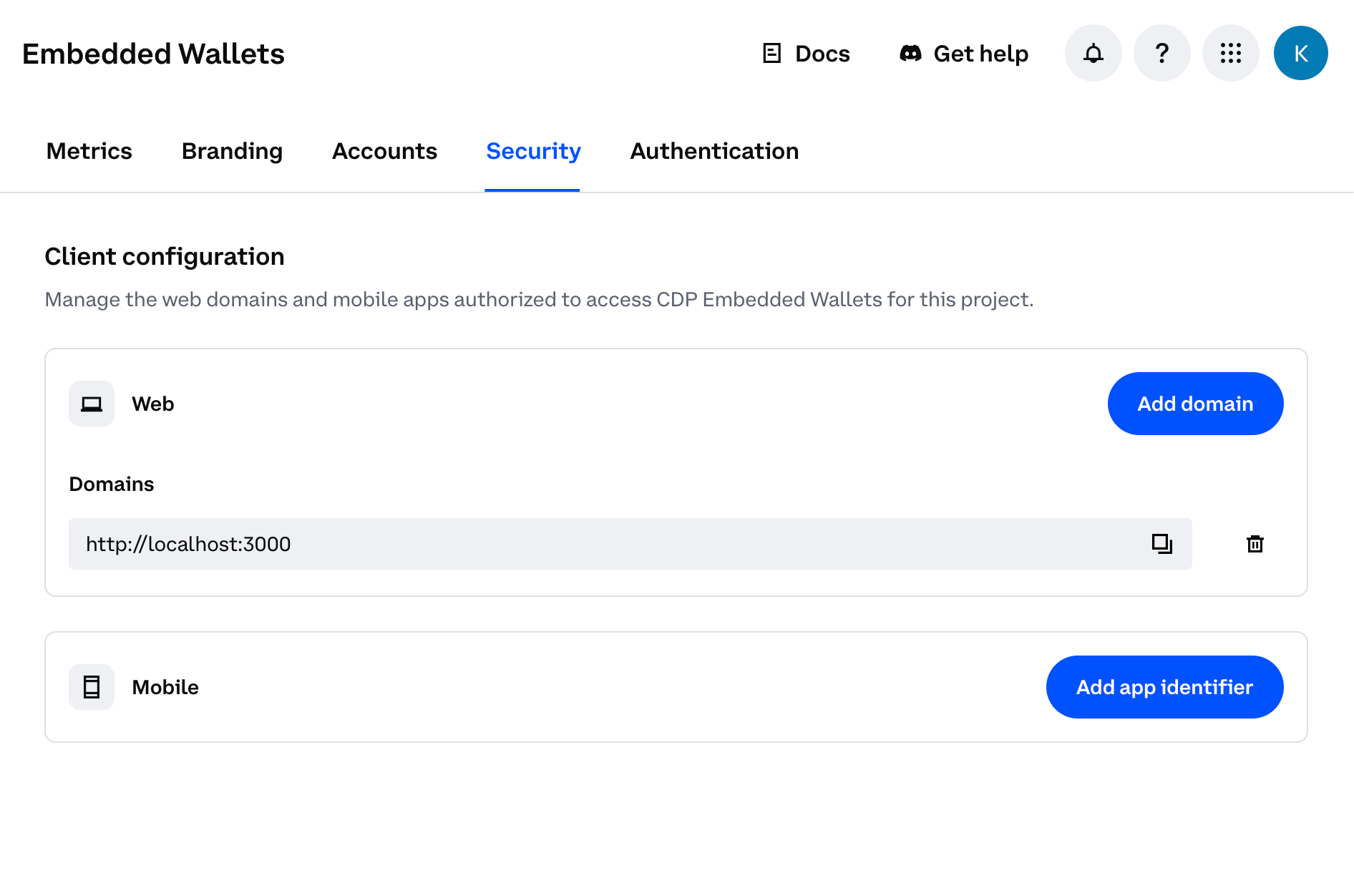
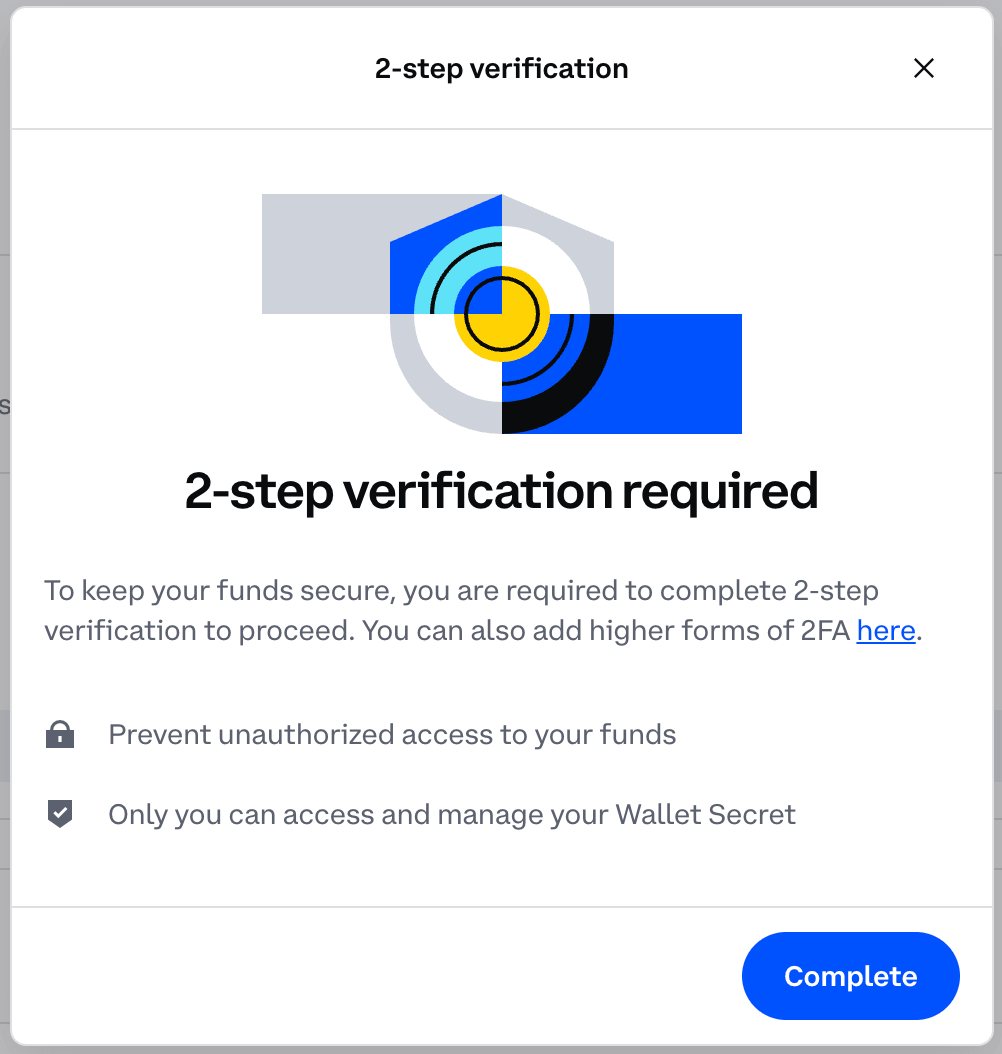
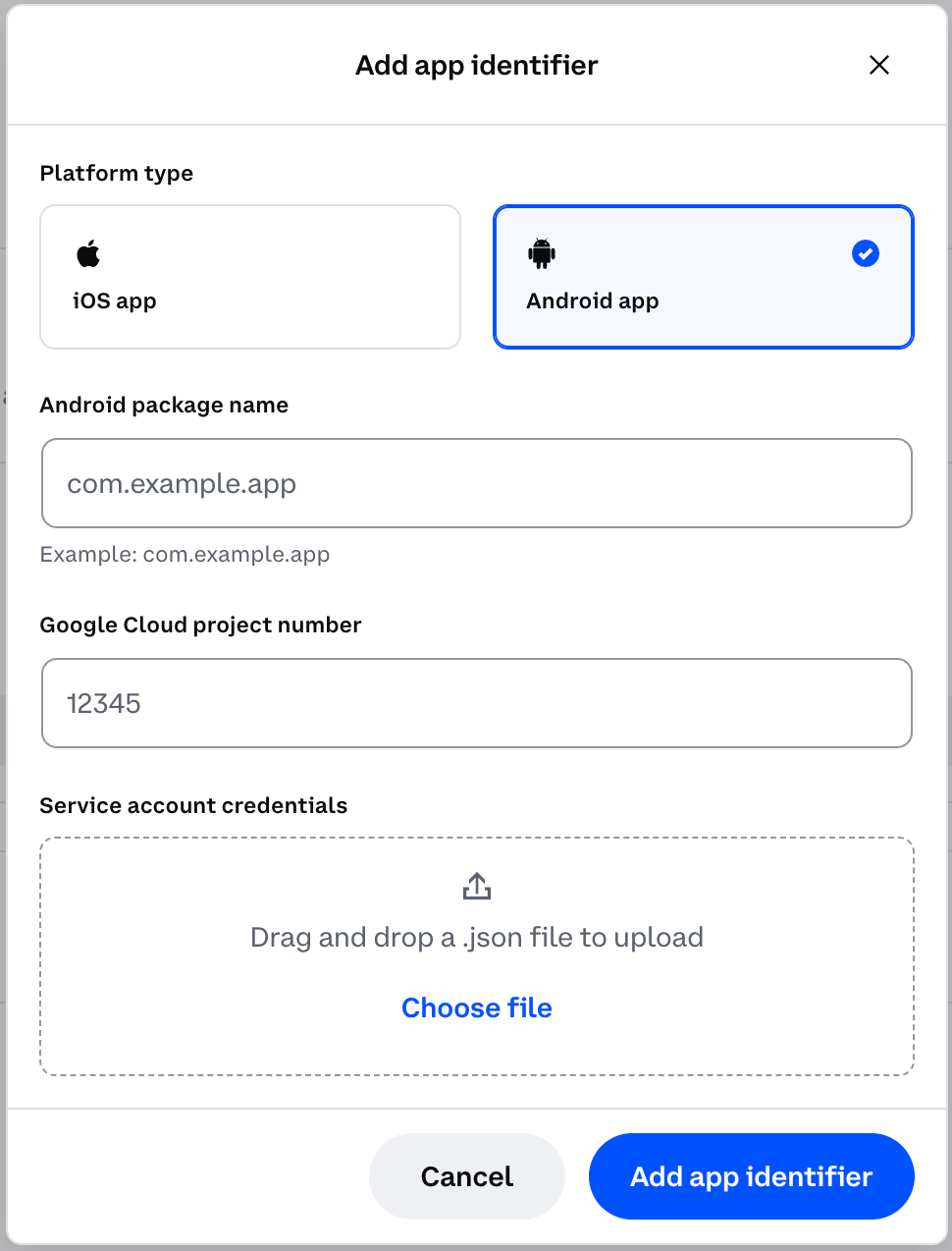
How it works
No additional code is required after the import. For operations that require it, such as login OTP requests, the SDK automatically requests a Play Integrity token from Google Play Services and attaches it to the request.Play Integrity tokens are handed off to Google for validation. Your service account credentials in the CDP Portal are what allow CDP to do this on your behalf.
Enabling attestation in the portal takes effect immediately. Ensure the updated app version with
@coinbase/cdp-app-attest installed and imported is fully rolled out to all your users before enabling attestation in the portal. If attestation is enabled while users are still on an older version without the package, they will experience authentication errors.Troubleshooting
"Attestation module not registered" warning
"Attestation module not registered" warning
You will see this console warning:The
@coinbase/cdp-app-attest import is missing from your app entry point. Add it at the top of the file.Integrity check fails
Integrity check fails
Play Integrity validates that the app was installed via the Play Store. Apps installed via
adb install or direct APK installation will not produce valid tokens. Install your app through the Play Store (any track).Users see authentication errors after you have enabled attestation
Users see authentication errors after you have enabled attestation
- Verify the package name in CDP Portal matches your
applicationId. - Confirm
@coinbase/cdp-app-attestis imported in your app entry point. - Confirm
react-native-device-infois installed. - Confirm the app was installed from the Play Store.
- Verify the service account credentials in CDP Portal are valid and not expired.
What to read next
- iOS App Attest — set up attestation for iOS
- Mobile App Attestation Overview — understand what attestation protects and how to configure the CDP Portal
- React Native Quickstart — get started with CDP embedded wallets in React Native